In today’s digital world, image quality plays a major role in how websites, blogs, e-commerce stores, and social media content are perceived. A high-quality image can instantly grab attention, improve engagement, and make content look more professional. However, many users still struggle with low-resolution images that appear blurry or pixelated when resized or uploaded on modern platforms.
To solve this issue, image upscaling tools are widely used. These tools increase the resolution of images while maintaining visual clarity. In this tutorial, you will learn how to build a simple but powerful Image Upscaler Website using HTML, CSS, and JavaScript. This project is perfect for beginners who want to understand real-world web development concepts through a practical application.
The best part of this project is that it runs entirely in the browser. There is no need for backend programming, databases, or server-side processing. Everything works using JavaScript and the HTML5 Canvas API, making it lightweight, fast, and easy to deploy on any hosting platform.
🚀 What You Will Build in This Project
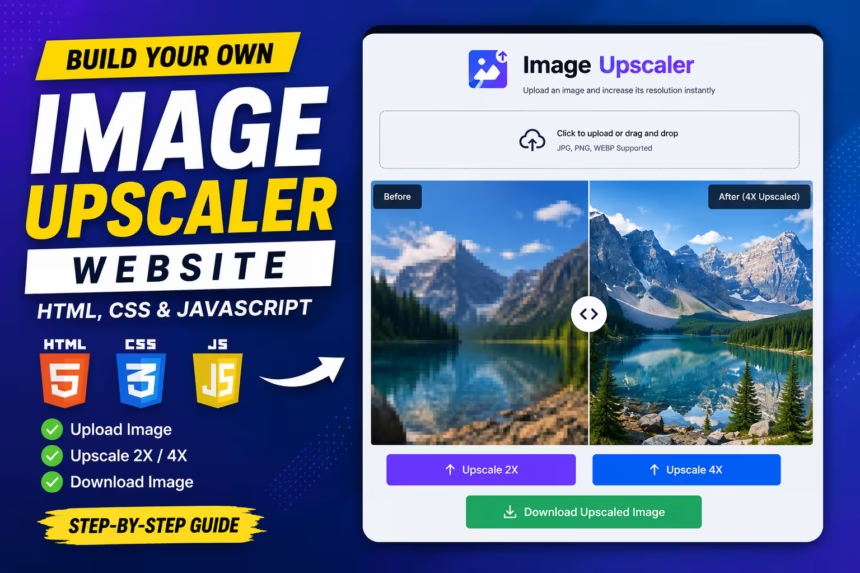
By the end of this tutorial, you will have a fully functional image upscaler tool that users can interact with directly from their browser. The website will allow users to upload images, preview them instantly, and upscale them using simple controls.
- Upload images from local device storage
- Instant image preview inside the browser
- Upscale image by 2X or 4X scale factor
- Download processed image instantly
- Responsive design for mobile and desktop users
- Clean and modern UI layout
This type of project is highly useful for developers who want to build portfolio projects, utility tools, or even SaaS-based image processing platforms in the future.
📁 Step 1: Create Project Folder Structure
To begin, create a new folder on your computer. You can name it anything, but for this project we will use:
image-upscalerInside this folder, create three essential files:
index.html
style.css
script.js
Each file has a specific responsibility in the project:
- index.html → Structure of the website
- style.css → Styling and UI design
- script.js → Image processing logic
📄 Step 2: HTML Structure (index.html)
The HTML file forms the backbone of the project. It contains all UI elements such as file input, buttons, preview section, and download link.
Below is the complete HTML code for the Image Upscaler tool:
<!DOCTYPE html>
<html lang="en">
<head>
    <meta charset="UTF-8">
    <meta name="viewport" content="width=device-width, initial-scale=1.0">
    <title>Image Upscaler Tool</title>
    <link rel="stylesheet" href="style.css">
</head>

<body>

<div class="container">

    <h1>Image Upscaler Tool</h1>

    <p>
        Upload your image and increase its resolution instantly using browser-based processing.
    </p>

    <input type="file" id="upload" accept="image/*">

    <div class="preview-box">
        <img id="previewImage" alt="Uploaded Image Preview">
    </div>

    <div class="button-group">
        <button onclick="upscale(2)">Upscale 2X</button>
        <button onclick="upscale(4)">Upscale 4X</button>
    </div>

    <canvas id="canvas"></canvas>

    <a id="downloadBtn" download="upscaled-image.png">
        Download Upscaled Image
    </a>

</div>

<script src="script.js"></script>

</body>
</html>
This structure ensures a simple and user-friendly interface where users can perform all actions without confusion.
🎨 Step 3: CSS Styling (style.css)
The CSS file is responsible for making the tool visually appealing and responsive. A clean UI improves user experience and increases engagement.
body{
    font-family: Arial, sans-serif;
    background: #f4f6fb;
    margin: 0;
    padding: 20px;
    text-align: center;
}

.container{
    max-width: 750px;
    margin: auto;
    background: #ffffff;
    padding: 25px;
    border-radius: 12px;
    box-shadow: 0 10px 25px rgba(0,0,0,0.1);
}

h1{
    margin-bottom: 10px;
}

p{
    color: #555;
    margin-bottom: 20px;
}

.preview-box img{
    max-width: 100%;
    margin-top: 20px;
    border-radius: 10px;
}

.button-group{
    margin-top: 20px;
}

button{
    padding: 12px 22px;
    margin: 5px;
    border: none;
    border-radius: 8px;
    cursor: pointer;
    background: #111827;
    color: white;
    font-size: 15px;
}

button:hover{
    background: #374151;
}

#downloadBtn{
    display: inline-block;
    margin-top: 25px;
    padding: 12px 20px;
    background: #16a34a;
    color: white;
    text-decoration: none;
    border-radius: 8px;
}

canvas{
    display: none;
}
This design focuses on simplicity, readability, and modern UI standards suitable for SaaS-style web tools.
⚙️ Step 4: JavaScript Logic (script.js)
The JavaScript file handles all image processing operations such as uploading, previewing, and upscaling images.
const upload = document.getElementById("upload");
const previewImage = document.getElementById("previewImage");
const canvas = document.getElementById("canvas");
const ctx = canvas.getContext("2d");
const downloadBtn = document.getElementById("downloadBtn");

let image = new Image();

upload.addEventListener("change", function(e){
    const file = e.target.files[0];

    const reader = new FileReader();

    reader.onload = function(event){
        image.src = event.target.result;
        previewImage.src = event.target.result;
    }

    reader.readAsDataURL(file);
});

function upscale(scale){

    canvas.width = image.width * scale;
    canvas.height = image.height * scale;

    ctx.imageSmoothingEnabled = true;

    ctx.drawImage(image, 0, 0, canvas.width, canvas.height);

    const imageURL = canvas.toDataURL("image/png");

    downloadBtn.href = imageURL;
}
This script uses the FileReader API and Canvas API to process images directly in the browser without uploading them to any server.
🧠 How This Image Upscaler Works
The working principle of this tool is very simple but effective for learning purposes. When a user uploads an image, the browser reads the file and displays it instantly. After that, the Canvas API redraws the image at a larger resolution based on the selected scale factor.
Finally, the canvas output is converted into a downloadable image file using the toDataURL() method. This allows users to save the upscaled image directly to their device.
Although this method does not use artificial intelligence, it demonstrates the fundamental concept of image resizing and browser-based graphics processing.
⚠️ Limitations of This Project
This project is designed for educational purposes and basic functionality. It does not include AI-based enhancement features.
When you scale an image using canvas, it only increases dimensions but does not generate new details. This may result in slightly blurry images if scaled too much.
Professional tools use AI models that intelligently reconstruct missing pixels, producing much sharper and more realistic results.
🚀 Future Improvements You Can Add
You can upgrade this basic project into a professional-level tool by adding advanced features such as:
- AI-based image enhancement API integration
- Drag and drop upload support
- Batch image processing
- Image compression tools
- WebP conversion support
- Dark mode UI
- Progress loading animations
These improvements can help transform your project into a full SaaS product or online tool website.
📌 Conclusion
Building an Image Upscaler Website using HTML, CSS, and JavaScript is an excellent beginner project that teaches real-world web development concepts such as file handling, Canvas API usage, and user interaction design.
Even though this version is not AI-powered, it provides a strong foundation for building advanced image processing tools in the future.