


Android Studio Emulator is one of the most important tools for Android developers. It allows you to test apps without using a physical device. However, many developers face a common problem: the emulator runs very slow, lags heavily, or takes too long to boot.
This issue is especially common on low-end laptops or systems without proper hardware acceleration enabled. The good news is that emulator performance can be significantly improved by applying the correct settings and optimizations.
In this guide, you will learn step-by-step methods to fix Android Studio Emulator lag and make it run much faster on Windows systems.
1. Why Android Studio Emulator Becomes Slow
Before fixing the problem, it is important to understand the main causes behind emulator slow performance.
- Hardware virtualization is disabled
- Insufficient RAM allocation
- Using ARM system images instead of x86
- Missing GPU acceleration
- Slow HDD instead of SSD
- Outdated Android Studio or SDK tools
- Heavy background applications running
Most of these issues are related to system configuration rather than Android Studio itself.
2. Enable Hardware Virtualization (Very Important)
Hardware virtualization is the most important factor for emulator performance. Without it, the emulator will run extremely slow.
To enable virtualization:
- Restart your computer
- Enter BIOS/UEFI settings (Press F2, F10, DEL depending on system)
- Find “Intel VT-x” or “AMD-V” option
- Enable it
- Save and exit BIOS
Once enabled, Android Emulator can use your CPU efficiently and run much faster.
3. Install HAXM or WHPX Acceleration
For Intel processors, Intel HAXM (Hardware Accelerated Execution Manager) is required for better performance.
For Windows systems, WHPX (Windows Hypervisor Platform) is used.
- Intel CPUs → HAXM
- AMD/Windows 10+ → WHPX
To install:
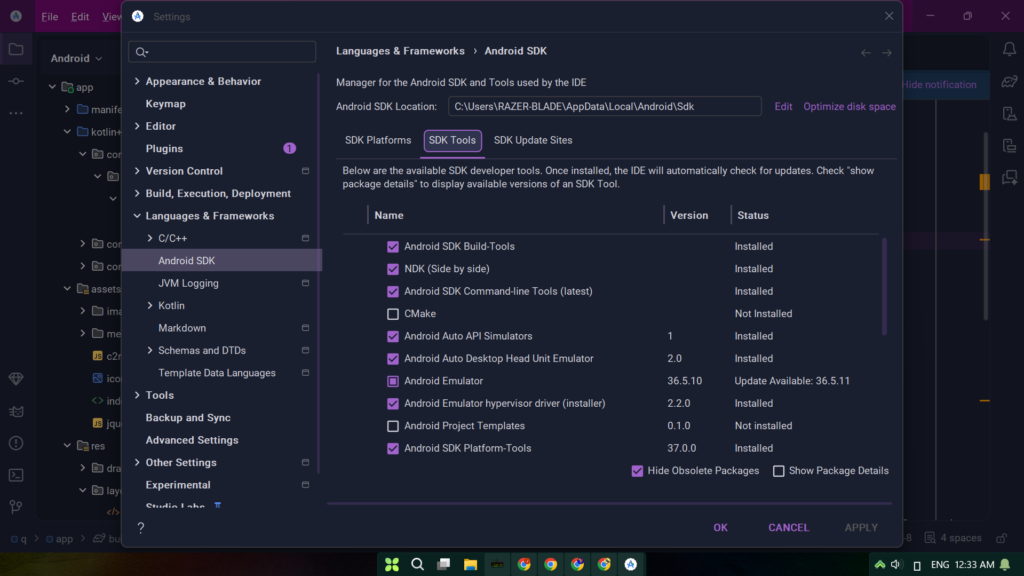
- Open Android Studio
- Go to SDK Manager
- Install Intel x86 Emulator Accelerator (HAXM)
- Or enable Windows Hypervisor Platform in Windows Features
This step alone can dramatically improve emulator speed.
4. Use x86 System Images Instead of ARM
Many beginners use ARM images, which are much slower on PC.
Instead, always use x86 or x86_64 system images because they are optimized for desktop processors.
- x86 images → Fast performance
- ARM images → Slow performance
When creating a new emulator, select x86 system image for best results.
5. Allocate More RAM to Emulator
By default, Android Emulator may use limited memory. Increasing RAM improves performance significantly.
To change RAM settings:
- Open AVD Manager
- Edit your virtual device
- Go to “Show Advanced Settings”
- Increase RAM (Recommended: 2048MB – 4096MB)
Make sure your system has enough free RAM before increasing allocation.
6. Enable GPU Acceleration
GPU acceleration helps render graphics faster using your system’s graphics card.
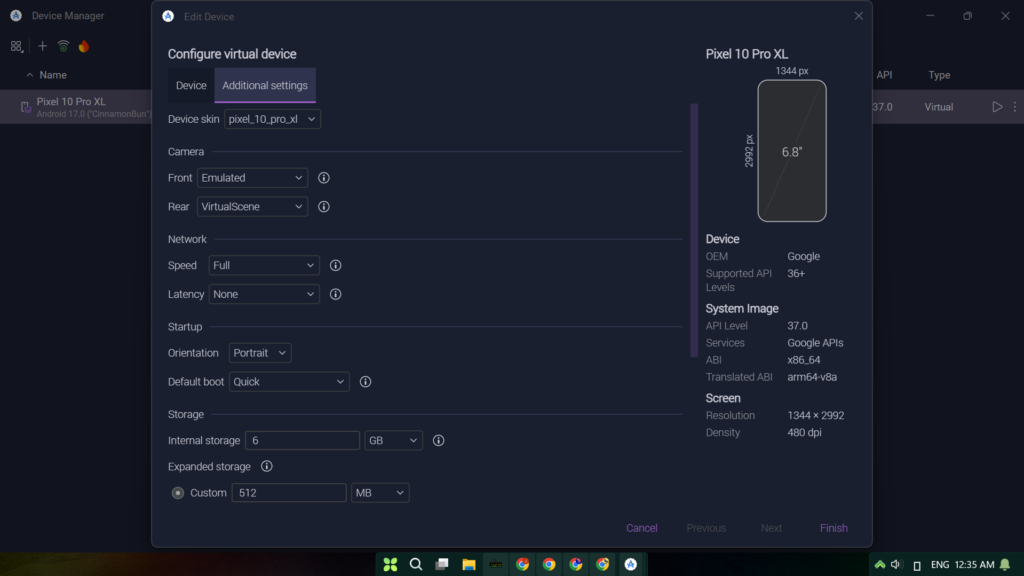
To enable it:
- Open AVD Manager
- Edit Emulator Settings
- Set Graphics to “Hardware – GLES 2.0”
This improves UI rendering and reduces lag inside the emulator.
7. Use SSD for Better Performance
If Android Studio is installed on an HDD, emulator performance will be slow.
Installing Android Studio on an SSD improves:
- Boot speed
- Build time
- Emulator responsiveness
SSD storage is highly recommended for Android development.
8. Close Background Applications
Heavy applications like browsers, video editors, or games consume RAM and CPU resources.
Before running the emulator:
- Close Chrome tabs
- Stop unnecessary apps
- Disable startup programs
This frees system resources for the emulator.
9. Update Android Studio and SDK Tools
Outdated Android Studio versions may cause performance issues.
Always ensure:
- Latest Android Studio version
- Updated SDK tools
- Updated Emulator package
Updates often include performance improvements and bug fixes.
10. Create a Lightweight Emulator
Not all emulator configurations are heavy. You can create a lightweight emulator for better speed.
Recommended settings:
- Small screen size (Pixel 3 or lower)
- Low resolution
- 1–2 GB RAM allocation
- x86 system image
Lightweight emulator setups are ideal for low-end PCs.
11. Alternative: Use Real Android Device
If emulator performance is still slow, using a real Android device is the best alternative.
Advantages:
- Faster testing
- Real-world performance
- No lag issues
Most professional developers prefer physical devices for testing performance-critical apps.
12. Best Practices for Smooth Android Development
To maintain smooth performance in Android Studio:
- Use SSD storage
- Keep system updated
- Enable virtualization
- Use x86 emulator images
- Allocate proper RAM
- Avoid running heavy apps simultaneously
These practices ensure a smooth development workflow.
Conclusion
Android Studio Emulator slow performance is a common issue, especially for beginners and developers using low-end systems. However, with proper configuration such as enabling virtualization, using x86 images, allocating RAM, and enabling GPU acceleration, emulator performance can be significantly improved.
For best results, always keep your system updated and use lightweight emulator configurations when necessary.
If you are serious about Android development, investing in an SSD and sufficient RAM will make a huge difference in your productivity.


