

Have you built an Android game in Unity, but the APK refuses to install on your phone? You may see messages such as “App not installed,” “There was a problem parsing the package,” or “This app isn’t compatible with your device.” These errors can be frustrating, especially when Unity reports that the build completed successfully.
The good news is that many APK installation problems can be fixed by checking a few settings in Unity and Android. In this guide, you’ll learn how to identify common installation errors and troubleshoot them step by step.
In this guide, you’ll learn how to fix:
- Unity APK showing “App not installed”
- “There was a problem parsing the package” errors
- Android compatibility and architecture issues
- APK files that fail to install after being transferred
- Signature conflicts when installing a new build
- Android installation permission problems
- Unity games that install but crash immediately
1. Check Whether the APK File Is Valid
Before changing your Unity settings, make sure the APK file was generated correctly and transferred completely to your Android device.
A damaged or incomplete download can prevent Android from installing the application.
How to check the APK
- Locate the APK file on your computer.
- Check that the file extension is
.apk. - Copy the APK directly to your phone using a USB cable or another reliable transfer method.
- Try installing the copied file using your phone’s file manager.
- If the installation fails, build the APK again in Unity and test the new file.
Important: If you accidentally built an Android App Bundle (.aab) instead of an APK, simply renaming the file to .apk will not work. Select the correct build format in Unity.
2. Fix the “App Not Installed” Error
The “App not installed” message can have several causes. One common reason is that an older version of the same application is already installed on your phone but was signed with a different key.
This can happen when you install a development build from one computer and then try to install another build signed with a different debug or release key.
Solution: Remove the Previous Version
- Find the existing game on your Android phone.
- Uninstall the old version.
- Restart your phone if necessary.
- Install the newly generated APK.
Warning: Uninstalling the application may delete its locally stored data, including saved game progress. Back up important data before removing the app.
How to prevent this problem
If you regularly distribute test builds, use a consistent signing key for builds that need to update the same installed application. Keep your release keystore and passwords secure, and make sure you have a backup before changing computers or reinstalling development tools.
3. Fix the “There Was a Problem Parsing the Package” Error
This error generally means Android cannot properly read or accept the application package. The cause may be an incomplete APK, an incompatible Android version, or a problem with the package itself.
Try these solutions
- Download or copy the APK again in case the original file is incomplete.
- Make sure the file is a genuine APK rather than an AAB file that has been renamed.
- Check whether your phone’s Android version meets the app’s minimum supported version.
- Rebuild the project using the correct Android settings in Unity.
- Test the APK on another compatible Android device to help identify whether the problem is device-specific.
If the same error continues, check the Android installation error reported through Android Debug Bridge (ADB). This can provide more useful information than the message shown by the phone.
4. Check the Minimum Android Version in Unity
Your Unity game may require a newer Android version than the one installed on your phone. If the device does not meet the application’s minimum Android requirement, Android may reject the installation.
How to check the setting
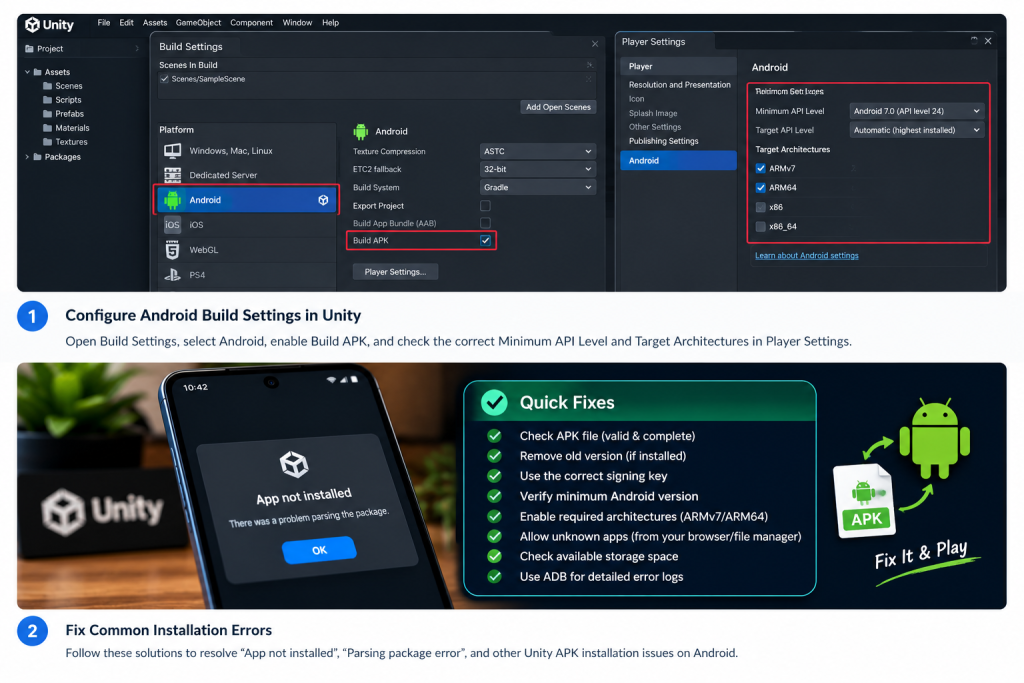
- Open your Unity project.
- Go to Edit > Project Settings > Player.
- Select the Android platform.
- Open the relevant Android configuration settings.
- Find Minimum API Level.
- Check the minimum requirement against the Android version supported by your test device.
If the minimum API level is higher than your target device supports, consider lowering it to a level compatible with that device, provided your game’s code and plugins support it.
Do not change the minimum API level blindly. Some Unity packages and Android libraries require newer Android versions, so verify compatibility before changing the setting.
For additional information, refer to the official Unity Android Player Settings documentation.
5. Check Android Target Architecture Settings
Android devices use different processor architectures. If your APK does not contain compatible native libraries, the device may refuse to install it.
This can happen when a build is configured for an architecture that the target phone does not support.
How to check Target Architectures
- Open Edit > Project Settings > Player in Unity.
- Select Android.
- Locate the Target Architectures setting under the relevant configuration section.
- Review the selected architectures, such as ARMv7 and ARM64, where supported by your Unity version and project.
- Enable the architecture required by your target device.
- Build a new APK and test it again.
For many Android phones, ARM64 support is important. However, the correct configuration depends on your target devices and any native plugins used by your project.
For more details, read the Unity Android Player Settings guide.
6. Allow Installation from the App You Used to Open the APK
Android may block an APK if the application used to open the file does not have permission to install unknown apps.
For example, if you downloaded the APK using a browser, you may need to allow installations from that browser. If you opened the file using a file manager, check the permission for that file manager instead.
How to enable the permission
- Open Settings on your Android phone.
- Go to Apps or the relevant app management section.
- Find the browser or file manager you used to open the APK.
- Look for Install unknown apps or a similarly named option.
- If appropriate, allow that app to install unknown applications.
- Try installing your Unity APK again.
The exact menu names vary between Android versions and manufacturers. Only allow this permission for apps and APK files you trust. You can disable the permission again after installation.
7. Check the APK Version and Package Name
Unity projects have an application identifier, also known as a package name. Android uses this identifier to determine whether an application is the same app as one already installed.
If you are testing multiple Unity projects with the same package name, they can conflict with each other. An update can also fail if its version code is lower than the installed version or if it uses a different signing key.
What you should check
- Package name: Make sure each separate application has the correct unique identifier.
- Version code: When updating an installed app, make sure the new build’s version code is appropriate for an update.
- Signing key: Use the correct signing key when updating an existing installation.
You can review the application identifier and version information in Unity’s Android Player settings. Menu locations may vary slightly between Unity versions.
If you only need to test a fresh build, uninstalling the previous version may resolve a package or signature conflict. Remember that this can delete local app data.
8. Check Available Storage Space
Insufficient storage can interfere with app installation. Even if the APK file is small enough to download, the phone may need additional space to install and run the application.
How to fix storage-related problems
- Open your Android phone’s Settings.
- Go to Storage.
- Check how much free space is available.
- Remove unnecessary downloads or applications if needed.
- Restart the phone and try installing the APK again.
If your Unity game contains large textures, audio files, videos, or other assets, consider reviewing the build size as well. Reducing unnecessary assets can make distribution easier.
9. Use ADB to Find the Actual Installation Error
If none of the previous methods works, Android Debug Bridge (ADB) can help identify the reason for the failed installation. This is especially useful for Unity developers who need more information than the phone’s error message provides.
Basic ADB troubleshooting
Install and configure Android SDK Platform-Tools on your development computer, enable USB debugging on your test device if appropriate, and connect the device. Then open a terminal or command prompt.
To check whether the device is connected, run:
adb devicesOnce your device is listed, try installing the APK using:
adb install "path/to/your-game.apk"Replace path/to/your-game.apk with the actual location of your APK file.
Pay attention to the error returned by ADB. For example:
INSTALL_FAILED_UPDATE_INCOMPATIBLEcan indicate a conflict with the installed app’s signing certificate.INSTALL_FAILED_OLDER_SDKindicates that the device’s Android version does not meet the app’s minimum requirement.INSTALL_FAILED_NO_MATCHING_ABISindicates that the package does not contain a compatible native architecture for the device.INSTALL_FAILED_VERSION_DOWNGRADEindicates a version downgrade restriction.
The exact error and its context determine the appropriate fix. Avoid uninstalling apps or changing project settings until you have identified the likely cause.
You can learn more about Android development tools in the official Android ADB documentation.
10. What If the APK Installs but the Game Crashes?
An APK that installs successfully but closes immediately has a different problem from an APK that Android refuses to install.
In this case, investigate runtime issues such as missing native libraries, plugin incompatibilities, memory problems, or exceptions in your game code.
How to investigate a crash
- Connect your Android device to your development computer.
- Enable USB debugging if required.
- Open the Unity project and check the Console for errors.
- Use Android log tools to collect information while reproducing the crash.
- Check whether the issue happens on one device or several devices.
- Review any recent changes to plugins, assets, scripts, or build settings.
For Unity-specific Android development issues, consult the official Unity Android development documentation.
Quick Checklist: Unity APK Not Installing
Before rebuilding your game, work through this checklist:
- Confirm that the file is a valid APK and was transferred completely.
- Check whether an older version of the app is already installed.
- Verify the signing key if you are updating an existing app.
- Check the minimum Android API level.
- Confirm that the APK supports your device’s processor architecture.
- Check the application package name and version code.
- Allow installation from the browser or file manager you used, if required.
- Make sure sufficient storage space is available.
- Use ADB to identify the specific installation error if the problem continues.
Frequently Asked Questions
Why does my Unity APK say “App not installed”?
Possible causes include a signing-key conflict, an incompatible Android version, an unsupported processor architecture, a version downgrade, or an invalid APK. Check the exact error before changing your Unity settings.
Why does my Unity APK work on one phone but not another?
The phones may have different Android versions, processor architectures, storage availability, or manufacturer-specific security restrictions. Compare the devices and check the installation error to narrow down the cause.
Can I install a Unity APK without publishing it on Google Play?
Yes. You can install a compatible APK directly on an Android device for testing, provided the device permits installation from the source you use. Only install APKs from trusted sources.
Should I enable ARM64 in Unity?
ARM64 is important for many modern Android devices and is commonly required for Play Store distribution. Your architecture settings should match your target devices and the requirements of your native plugins.
Why does my Unity game install but immediately close?
This usually indicates a runtime problem rather than an installation problem. Check the Unity Console and Android logs for crashes, missing libraries, plugin conflicts, or exceptions.
Final Thoughts
When a Unity APK fails to install on Android, the most effective approach is to identify the exact error before rebuilding the project repeatedly. Start by checking the APK file, installed app version, signing key, Android compatibility, and processor architecture.
If the problem persists, use ADB to obtain the installation error and troubleshoot the specific cause. This can save time and help you get your Unity game running on your target Android device.
Found another solution that worked for your Unity APK? Share the error message and fix in the comments to help other developers.
