

Last updated: October 2026
You click a result on Google, read the first few lines, and decide it isn’t what you wanted. You press the Back button. Nothing happens. Or worse, a pop-up ad appears, or you land on a page you never visited. You press Back again and again, and you’re still stuck.
That’s back button hijacking, and Google now treats it as spam. In April 2026, Google added it to its spam policies as an explicit violation. Enforcement began on June 15, 2026, so it’s already active. If you run a WordPress blog, show ads, or use pop-up and notification plugins, you should check your site now.
In this guide, I’ll explain what back button hijacking is, why it can affect even honest site owners, how to test your own website step by step, and how to fix it.
What Is Back Button Hijacking?
Normally, when a visitor presses the browser’s Back button, they go straight back to the page they came from. Back button hijacking breaks that expectation. Google describes it as interfering with the browser’s navigation so that the visitor can’t immediately return to the previous page.
Typical examples include:
- Pressing Back sends the visitor to a page they never actually opened
- Pressing Back triggers an unwanted ad, pop-up, or “recommended content” page
- Pressing Back keeps the visitor on the same site, so they have to press it several times
- An “exit intent” overlay or offer is wired to the Back button
- A script quietly inserts extra pages into the browser history when your page loads
Google says it considers this a “malicious practice” because it breaks the visitor’s expected journey and causes frustration. It sits in the same spam policy category as malware and unwanted software.
What Did Google Announce, and When?
- April 13, 2026: Google Search Central announced that back button hijacking is now an explicit spam violation.
- May to June 2026: Google sent warning emails through Search Console to sites it detected doing this, including sample URLs.
- June 15, 2026: Enforcement began. Sites that still do this can receive a manual spam action or an automated ranking demotion, and either can reduce your visibility in Google Search.
Google also made one point very clear: some cases come from a site’s included libraries or advertising platform, not from code the site owner wrote. In other words, you can be affected even if you never wrote a line of code to do this.
Why Should Bloggers and Website Owners Care?
- Your rankings can suffer. Manual actions and demotions reduce search visibility, which means less traffic.
- It can happen by accident. Pop-up plugins, push-notification tools, third-party ad networks, “related content” widgets, and old themes may do it without telling you.
- It hurts user experience. Even without penalties, visitors who feel trapped leave and don’t return.
- It affects monetization. If you plan to apply for AdSense or already show ads, a frustrating site experience is a risk. I explained user experience problems in my post on Why AdSense Gets Rejected.
A Quick Technical Background (Simple Version)
Browsers keep a list of the pages you visited, called the history. Websites can add or change entries in that list using JavaScript, through something called the History API (functions such as pushState and replaceState).
This is not bad by itself. Modern apps use it properly: when you open a new screen in a web app, the app adds a history entry so the Back button works naturally. The problem begins when scripts add deceptive or manipulative entries that stop visitors from leaving.
So the question isn’t “does my site use the History API?” It’s “does pressing Back take my visitor where they expect?”
How to Check Your Website: Step by Step
Step 1: Do the Manual Back Button Test
This simple test finds most problems. Do it on a phone and a computer, because Google notes this behavior is especially common on mobile browsers.
- Open a private/incognito window in your browser. This avoids interference from your extensions and your logged-in session.
- Search Google for something your site ranks for, and open your page from the search results.
- Wait a few seconds, then press Back once.
- Check what happens.
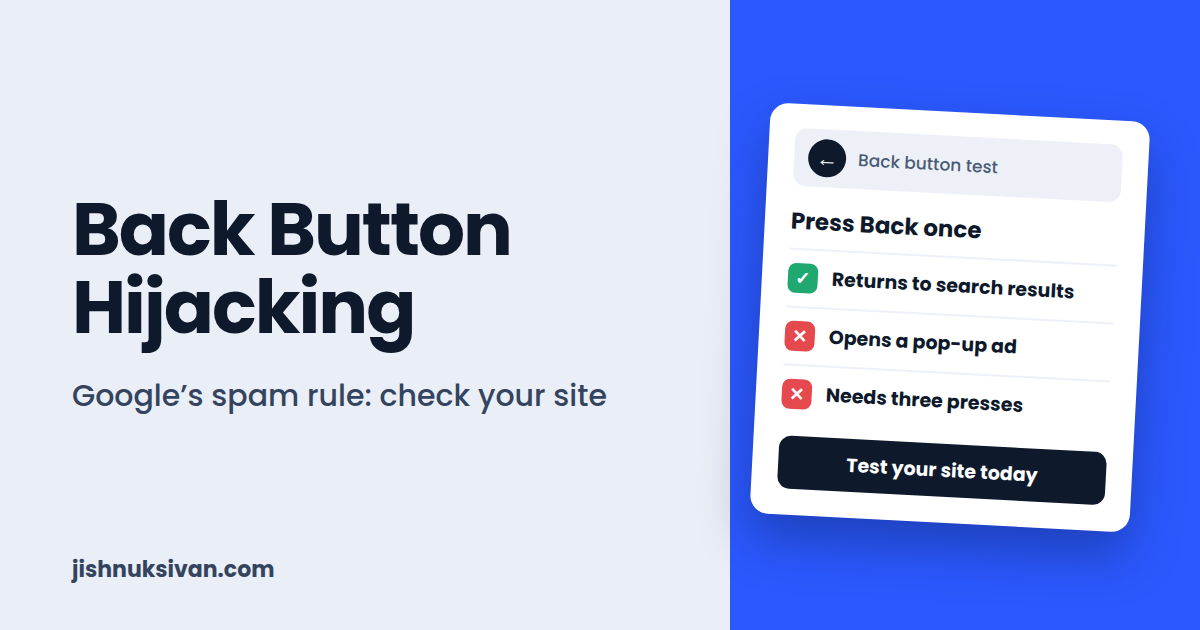
Expected result: You return to the Google search results immediately, with one press.
Problem signs:
- You stay on your site or the page reloads
- A pop-up, ad, or different page appears
- You need to press Back more than once
Repeat the test for:
- Your homepage
- A blog post
- A category page
- Pages with ads and pop-ups
- Pages you open from social media links and direct links, not only from Google
Also test after accepting or dismissing any cookie banner, because some scripts only start after an interaction.
Step 2: Test With Plugins and Ads Turned Off
If you notice a problem, find out what’s causing it. On a staging copy of your site (or at a quiet time on your live site), disable suspects one by one and repeat the test:
- Pop-up, exit-intent, and “email capture” plugins
- Push notification services
- Third-party ad network code and auto-ad scripts
- “Related content” or “recommended for you” widgets
- Custom code added through header/footer plugins
- Redirect, link-cloaking, or “anti-adblock” scripts
Test again after each change. When the problem disappears, you’ve found the cause.
Step 3: Search Your Site’s Code
Open your page in Chrome, then press F12 to open DevTools.
- Go to the Sources tab.
- Press Ctrl + Shift + F (Windows) or Cmd + Option + F (Mac) to search across all loaded files.
- Search for these terms:
pushState,replaceState,popstate,onpopstate.
You can also check how the history changes. In the Console tab, run:
history.lengthNote the number, reload the page, and run it again after loading. If the number jumps up by more than expected without you clicking anything, a script may be adding history entries.
Important: Finding pushState in the code does not prove a violation. Many legitimate scripts, such as galleries, lightboxes, and AJAX page loaders, use it. What matters is whether the Back button behaves normally. Use this search to find which file or plugin is responsible, then judge from there.
If you have SSH access to your WordPress server, you can search your theme and plugin files directly:
cd /path/to/wordpress
grep -rIl --include=*.js -E "pushState|replaceState|popstate" wp-content/plugins wp-content/themes
This lists the JavaScript files that mention those functions. Check which plugin or theme each file belongs to.
Step 4: Review Google Search Console
- Open Google Search Console and select your property.
- Go to Security & Manual Actions → Manual actions and check for any spam-related action.
- Check the Messages inbox for warnings about back button hijacking. Google sent these before enforcement.
- Compare your Performance report (clicks and impressions) from before and after mid-June 2026. A sharp drop after that date is a clue, though many other things can also affect traffic.
If you haven’t set up Search Console yet, do it now, because it’s the main way Google contacts site owners.
Step 5: Check Your Ad and Third-Party Scripts
Because Google specifically mentioned ad platforms and included libraries:
- List every third-party script on your site (ads, analytics, chat widgets, notifications, widgets).
- Remove any you don’t need.
- If you use a third-party ad network, check its settings for options like “exit ads,” “back button ads,” or “popunders,” and turn them off.
- If a vendor’s script is the cause, contact their support, or replace it.
How to Fix Back Button Hijacking
- Remove or disable the offending script or plugin. If a pop-up plugin hooks into the Back button, turn that feature off or switch to a plugin that doesn’t.
- Turn off back-button or exit ad formats in your ad network settings.
- Clean up custom code in your theme’s
functions.php, header/footer scripts, and code snippet plugins. Remove anything you don’t understand or didn’t write. - Update or replace old themes and plugins. Outdated or abandoned ones are common sources of hidden scripts.
- Scan for malware. Hacked sites sometimes get injected scripts that redirect visitors. Use a security plugin or your host’s scanner, and check the VPS security steps in my other guide if you manage your own server.
- Clear all caches (plugin cache, server cache, CDN) and test again in a private window.
- Re-test on mobile and desktop to confirm one press of Back returns to the previous page.
If You Received a Manual Action
After fixing the problem, go to Search Console → Manual actions, open the issue, and click Request review. In your message, explain clearly:
- What caused the problem
- What you removed or changed
- How you confirmed that the Back button now works normally
Be honest and specific. Reviews can take time, so don’t submit repeated requests.
If Your Traffic Dropped Without a Manual Action
An automated demotion doesn’t come with a reconsideration form. Fix the issue, make sure the site is clean, and give Google time to re-evaluate your pages. Keep publishing useful content in the meantime.
For Developers: Using the History API the Right Way
If you build web apps, single-page apps, or Flutter web projects, follow these rules to stay safe:
- Add a history entry only when the user genuinely moves to a new view or page.
- Don’t add or replace entries automatically when a page loads.
- Don’t use
popstatehandlers to redirect visitors or show unrelated content. - Make sure each history entry corresponds to something the visitor actually visited.
- Test the Back button manually after every navigation change, especially on mobile.
- Audit third-party libraries and ad SDKs, since they can introduce this behavior.
Prevention Checklist
- [ ] Back button test done on mobile and desktop (incognito)
- [ ] Tested from Google, social media, and direct links
- [ ] Pop-up, exit-intent, and notification plugins reviewed
- [ ] Third-party ad scripts reviewed, back-button and exit ad formats turned off
- [ ] Code searched for
pushState,replaceState, andpopstate - [ ] Search Console checked for manual actions and messages
- [ ] Unused plugins, themes, and scripts removed
- [ ] Site scanned for malware
- [ ] Re-test planned after every new plugin or ad setting
Common Mistakes to Avoid
- Assuming it can’t happen to you. Many sites are affected through plugins or ad scripts they didn’t write.
- Testing while logged in or with extensions on. Use a private window.
- Testing only from the homepage. Test posts, categories, and different entry sources.
- Treating every
pushStateas a violation. Judge by real behavior, not just by code. - Removing a script without re-testing. Always confirm the fix works.
- Ignoring Search Console messages. Warnings can arrive there first.
- Installing new pop-up or ad plugins without testing. Test after every change.
Frequently Asked Questions
Is back button hijacking the same as a pop-up?
No. A pop-up is a window or overlay that appears on the page. Back button hijacking specifically interferes with the visitor’s ability to press Back and return to the previous page. Some pop-up tools, however, can cause it if they attach to the Back button.
Does using the History API mean I’m violating the policy?
No. Many legitimate sites and apps use it. The violation is about deceptive or manipulative behavior that prevents normal back navigation.
Can my ads cause this even if I didn’t add any code?
Yes. Google has said that some cases come from included libraries or advertising platforms. That’s why you should review third-party scripts.
What penalties can Google apply?
Google can take a manual spam action or apply an automated demotion. Both can reduce your visibility in search results.
How long do I have to fix it?
The enforcement date (June 15, 2026) has already passed, so the best time to check is now.
How do I know if I got a manual action?
Open Google Search Console, then Security & Manual Actions, then Manual actions. Also check your Messages inbox.
Does this affect my AdSense application?
It’s a Google Search policy, separate from AdSense program policies. Still, a site that frustrates visitors is a bad base for ads, so fixing it supports both search traffic and monetization.
Final Thoughts
Back button hijacking is simple to understand and, once you know what to look for, simple to check: press Back and see where you land. Run the test on your own site today, review your plugins and ad scripts, and keep an eye on Search Console. A few minutes of checking can protect your rankings and your visitors’ trust.
If you’re preparing your site for AdSense, you may also like my guide on Why AdSense Gets Rejected. Questions? Send them through my Contact page.
Disclaimer: Google’s policies and enforcement change over time. This guide is for educational purposes and is based on Google’s published announcement and reports from the SEO industry. Always check Google Search Central for the latest rules. Test changes carefully and keep a backup before editing your site.
