

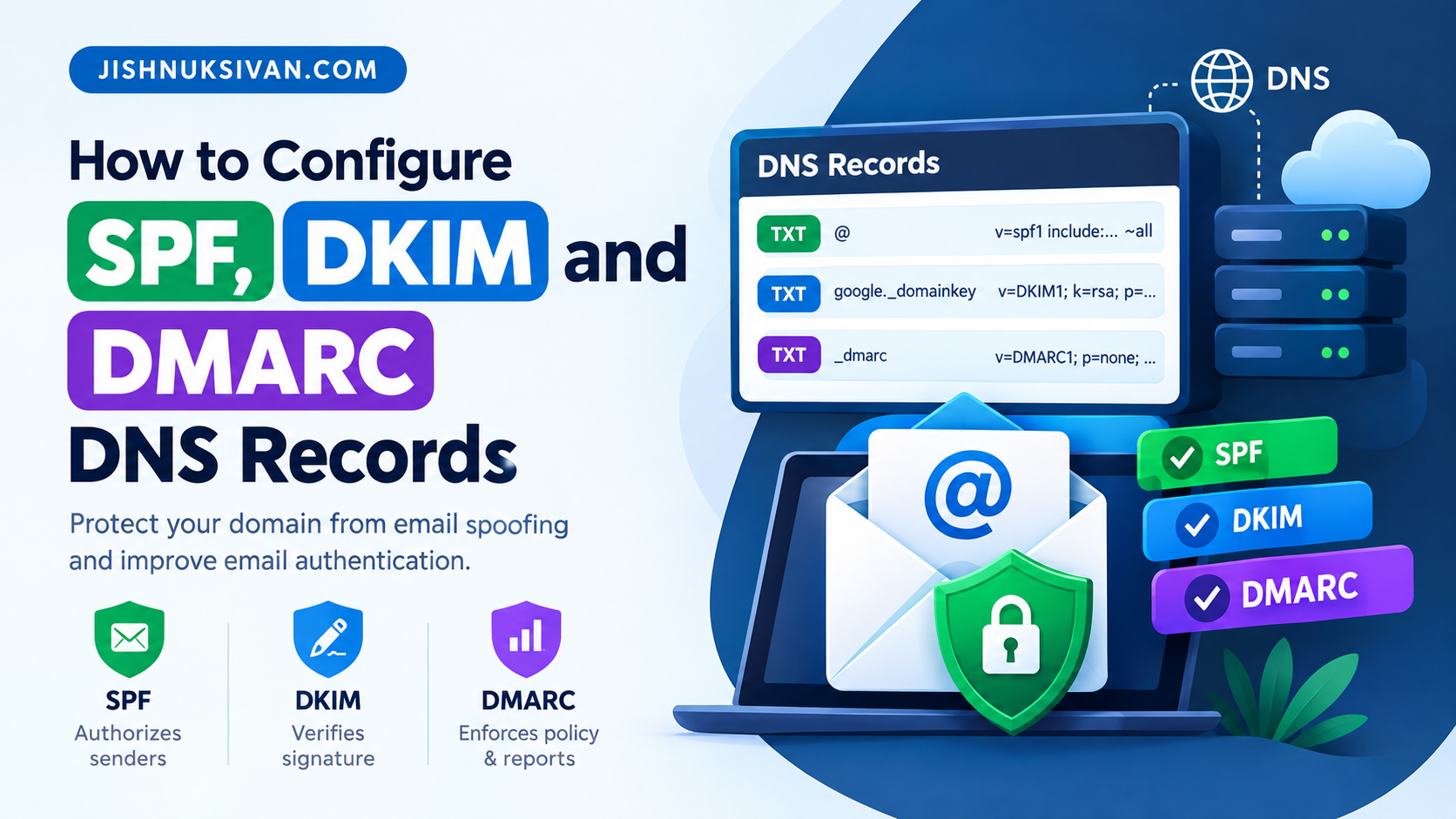
Email is an essential communication tool for businesses, developers, website owners, and bloggers. However, attackers can sometimes send emails that appear to come from your domain. This technique, known as email spoofing, can damage your reputation and make it easier for attackers to impersonate your website or business.
SPF, DKIM, and DMARC are three important email authentication mechanisms that help protect your domain. They work together to identify authorized email senders, verify email signatures, and tell receiving mail servers how to handle messages that fail authentication checks.
In this guide, you will learn how to configure SPF, DKIM, and DMARC DNS records step by step. You will also learn how to verify the records, troubleshoot common problems, and avoid mistakes that can affect email delivery.
What Are SPF, DKIM and DMARC?
SPF, DKIM, and DMARC are email authentication technologies configured through DNS records.
1. What Is SPF?
SPF stands for Sender Policy Framework. It identifies which mail servers are authorized to send emails using your domain.
For example, if you use Google Workspace to send emails from you@example.com, an SPF record can identify Google’s authorized sending infrastructure.
An example SPF record for a domain that uses only Google Workspace is:
v=spf1 include:_spf.google.com ~all
This example is suitable only when Google Workspace is your authorized sender and you have confirmed that no other service needs to send email from the domain.
2. What Is DKIM?
DKIM stands for DomainKeys Identified Mail. It uses a cryptographic signature to help receiving servers verify that an email was signed by an authorized domain and that signed portions of the message have not been altered.
Your email provider generates the DKIM configuration. You publish the required public key or provider-specific DNS record, while the sending system uses the corresponding private key to sign outgoing messages.
A DKIM TXT record commonly looks like this:
v=DKIM1; k=rsa; p=PUBLIC_KEY_VALUE
This is an illustrative example, not a working DKIM key. Always copy the actual record generated by your email provider.
3. What Is DMARC?
DMARC stands for Domain-based Message Authentication, Reporting, and Conformance.
It builds on SPF and DKIM by checking whether the authenticated domain aligns with the domain visible in the email’s From address. It also lets domain owners publish a policy for messages that fail DMARC and request aggregate reports.
An example monitoring policy is:
v=DMARC1; p=none; rua=mailto:dmarc@example.com
Replace the example reporting address with a mailbox you control. The address should be configured to receive the reports.
Why Should You Configure These DNS Records?
Configuring SPF, DKIM, and DMARC can help you:
- Reduce unauthorized use of your domain in email spoofing.
- Improve email authentication and help legitimate messages reach recipients.
- Identify legitimate email services that send messages on your behalf.
- Monitor authentication failures through DMARC reports.
- Establish a stronger email security policy for your domain.
These records do not guarantee inbox placement or eliminate every form of phishing. Email reputation, message content, recipient policies, and other security checks also influence delivery.
Before You Start
Before changing your DNS settings, identify every service that sends email using your domain.
These services may include:
- Google Workspace or Gmail for business.
- Microsoft 365 or Exchange Online.
- Your website’s contact form.
- WordPress password reset and notification emails.
- Newsletter and marketing platforms.
- Transactional email services used by applications.
You should also identify where your authoritative DNS records are managed. This may be Cloudflare, your domain registrar, or your hosting provider.
Important: Adding records in the wrong DNS dashboard will not update your live domain if that dashboard is not authoritative for your DNS zone.
Take a backup or screenshot of your current DNS records before making changes.
Step 1: Open Your Domain’s DNS Management Panel
- Sign in to your DNS provider.
- Select your domain.
- Open the DNS management page.
- Find the section for adding or editing TXT records.
- Review existing SPF, DKIM, and DMARC records before creating new ones.
In Cloudflare, open your domain and select DNS → Records.
Other providers may call this section DNS Management, DNS Zone Editor, Zone File Settings, or Manage DNS.
Most SPF and DMARC configurations use TXT records. DKIM may use TXT or CNAME records depending on the email provider.
Step 2: Configure the SPF Record
SPF specifies which senders are authorized to send email using your domain.
Example: Google Workspace SPF
If Google Workspace is your only authorized email sender, create or update the following TXT record:
| Field | Value |
|---|---|
| Type | TXT |
| Name / Host | @ |
| Value | v=spf1 include:_spf.google.com ~all |
| TTL | Auto or 3600 |
The @ symbol usually represents the root domain. Some DNS providers expect the full domain name instead.
Understanding the SPF Syntax
v=spf1identifies the record as an SPF policy.include:_spf.google.comauthorizes the sending sources defined by Google’s SPF policy.~allmarks other senders as a soft fail.
The ~all mechanism is commonly used while configuring SPF, but it does not by itself guarantee that an unauthorized message will be rejected.
What If You Use Multiple Email Providers?
Suppose your domain sends emails through Google Workspace and a separate email marketing platform.
You must combine the providers’ authorized sending mechanisms into one SPF record, following the exact configuration recommended by each provider.
Do not create a separate SPF record for each service.
For example, this is an illustrative structure only:
v=spf1 include:GOOGLE_PROVIDER include:OTHER_PROVIDER ~all
Replace the placeholders with the actual mechanisms supplied by your email providers. The example is not a valid record as written.
Important SPF rules:
- Publish only one SPF policy for a given hostname.
- Include every legitimate sending service.
- Avoid obsolete or unnecessary mechanisms.
- SPF has a DNS lookup limit of 10 for mechanisms and modifiers that trigger DNS lookups.
- Do not switch to
-alluntil you have confirmed that all legitimate senders are authorized.
If your domain does not send email, do not publish an SPF record copied from an unrelated provider. Choose a policy appropriate to your actual email setup.
Step 3: Configure DKIM
DKIM adds a cryptographic signature to outgoing messages. Unlike a generic SPF record, DKIM configuration is usually specific to your email provider and domain.
Generate the DKIM Record
For Google Workspace, an administrator can generally follow these steps:
- Open the Google Admin console.
- Navigate to Apps → Google Workspace → Gmail.
- Open the email authentication or DKIM configuration section.
- Select your domain.
- Generate the DKIM record using the available options.
- Copy the exact DNS hostname and TXT value supplied by Google.
Menu labels may change as the provider updates its administration interface.
For Microsoft 365, follow the DKIM configuration instructions in the Microsoft Defender or Microsoft 365 administration interface. Microsoft commonly uses provider-specific CNAME records for DKIM selectors.
Add the DKIM DNS Record
A typical DKIM TXT record might use the following structure:
| Field | Example |
|---|---|
| Type | TXT |
| Name / Host | google._domainkey |
| Value | Provider-generated DKIM public key |
| TTL | Auto or 3600 |
The hostname above is an example for a Google-style selector. Your provider may generate a different selector or require CNAME records instead.
Paste the entire value supplied by your provider. Do not replace it with a sample key from an article.
Enable DKIM Authentication
After publishing the record:
- Wait for the DNS record to become visible.
- Return to your email provider’s administration panel.
- Verify the record if the provider offers a verification option.
- Enable DKIM signing or select the option to start authentication.
- Send a test email and inspect its authentication results.
Publishing a DKIM record alone does not necessarily enable email signing. Complete the activation step in your email provider’s administration panel.
Step 4: Configure the DMARC Record
DMARC tells receiving mail servers how to handle messages that fail DMARC authentication and allows domain owners to request aggregate reports.
Start with a monitoring policy if you are setting up DMARC for the first time.
Create the following TXT record:
| Field | Value |
|---|---|
| Type | TXT |
| Name / Host | _dmarc |
| Value | v=DMARC1; p=none; rua=mailto:dmarc@example.com |
| TTL | Auto or 3600 |
Replace dmarc@example.com with a working reporting mailbox that you control.
Understanding DMARC Tags
v=DMARC1identifies the DMARC version.p=nonerequests monitoring without a DMARC quarantine or reject policy.rua=mailto:...specifies where aggregate reports should be sent.
DMARC reports are usually machine-readable XML files and may be difficult to understand without a reporting tool.
The Three Main DMARC Policies
1. p=none
Used for monitoring. It lets you observe authentication results before enforcing a stricter policy.
2. p=quarantine
Requests that messages failing DMARC be treated as suspicious, often by placing them in spam or quarantine. The recipient determines the final handling.
3. p=reject
Requests rejection of messages that fail DMARC. This is a stronger policy, but you should use it only after verifying all legitimate email services.
Should You Start With p=reject?
No, not without reviewing your sending sources first.
If a legitimate service is missing from your SPF or DKIM setup, an enforcement policy may cause its messages to be rejected or quarantined.
A safer rollout is:
- Publish
p=none. - Review reports and identify every legitimate sending service.
- Correct SPF, DKIM, and domain alignment problems.
- Test the changes.
- Move gradually to
p=quarantineorp=rejectwhen appropriate.
Step 5: Verify Your DNS Records
After saving the records, confirm that they are publicly visible and that outgoing emails pass authentication.
DNS updates may become visible quickly, but caching and provider settings can delay the process. Some changes may take up to 48 hours to be reflected everywhere.
Check SPF With nslookup
On Windows, open Command Prompt and run:
nslookup -type=TXT example.com
Replace example.com with your actual domain.
Look for a TXT record beginning with v=spf1.
Check DKIM With nslookup
If your DKIM selector is google, run:
nslookup -type=TXT google._domainkey.example.com
Replace the selector and domain with your provider’s actual values.
If your provider uses CNAME records, query the selector using a CNAME lookup instead.
Check DMARC With nslookup
Run:
nslookup -type=TXT _dmarc.example.com
You should find the DMARC record beginning with v=DMARC1.
You can also use online DNS lookup tools to inspect the published records.
Test an Actual Email
Send a message to a mailbox you control, such as a Gmail account.
Open the received message’s details and find the authentication results. Look for:
spf=passdkim=passdmarc=pass
A successful DNS lookup is not enough to confirm that every outgoing message passes authentication. Check the results of a real message sent through each legitimate provider.
Step 6: Common SPF, DKIM and DMARC Problems
Problem 1: Multiple SPF Records
Cause: More than one TXT record begins with v=spf1 for the same hostname.
Solution: Merge the required authorized senders into a single valid SPF record. Check the final record carefully before removing old records.
Problem 2: DKIM Authentication Fails
Possible causes:
- The DNS selector is incorrect.
- The public key was copied incorrectly.
- The provider has not enabled DKIM signing.
- A CNAME was used where a TXT record was required, or vice versa.
- The record was added to the wrong DNS zone.
Solution: Copy the hostname and value directly from your email provider and confirm the expected record type.
Problem 3: DMARC Record Is Not Found
Cause: The TXT record may have been created with an incorrect hostname, such as dmarc instead of _dmarc.
Solution: Confirm the exact hostname and query _dmarc.yourdomain.com.
Some DNS interfaces automatically append the domain name. If the full domain is entered into a field that appends it automatically, the result may be incorrect.
Problem 4: Legitimate Emails Go to Spam
Possible causes:
- SPF does not authorize a legitimate sender.
- DKIM signing is missing or broken.
- SPF or DKIM fails DMARC alignment.
- The sending domain or IP has a poor reputation.
- The recipient’s filtering policies reject the message.
Solution: Inspect authentication results and provider logs. Do not assume that publishing all three DNS records automatically guarantees inbox delivery.
Problem 5: WordPress Emails Fail Authentication
WordPress websites may send notifications through the hosting server, an SMTP plugin, or a third-party email provider.
If your website sends mail directly from the server, determine the actual sending infrastructure before adding it to SPF. If you use a transactional email service, follow that service’s domain verification and DKIM instructions.
Do not authorize every hosting server by default. Only authorize sources that genuinely send email on your domain’s behalf.
Step 7: Best Practices for Email Authentication
Follow these recommendations to maintain a reliable configuration:
- Keep a documented list of every service that sends mail from your domain.
- Maintain a single SPF policy per hostname.
- Use the DKIM configuration supplied by your email provider.
- Start DMARC in monitoring mode if you do not yet understand your sending traffic.
- Review aggregate reports before enforcing a stricter policy.
- Remove obsolete SPF mechanisms and unused DKIM records when it is safe to do so.
- Recheck authentication after changing email providers or website mail settings.
- Avoid copying sample DNS values without checking the provider’s current documentation.
- Protect the DNS account with strong authentication and limited administrative access.
- Review authentication failures regularly.
Frequently Asked Questions
1. Are SPF, DKIM and DMARC DNS records free?
The DNS records themselves generally do not require a separate fee. However, your email provider, DNS hosting plan, or DMARC reporting service may have its own pricing.
2. Do I need all three records?
Using SPF, DKIM, and DMARC together provides a more complete email authentication setup. Requirements vary by email provider and sender type, and bulk senders may have specific authentication requirements.
3. Can I configure these records using Cloudflare?
Yes. You can publish the required DNS records through Cloudflare if Cloudflare manages the authoritative DNS for your domain. Copy the exact values provided by your email service.
4. How long does DNS propagation take?
Some records become visible within minutes, while caching and DNS provider behavior can delay updates. Allow time for the changes to propagate and verify the records before troubleshooting further.
5. Does DMARC prevent every phishing email?
No. DMARC helps protect against unauthorized use of your domain in the visible From address. It does not prevent every phishing attack, lookalike domain, or compromised legitimate account.
6. What happens if I publish two SPF records?
Multiple SPF policies for the same hostname can cause SPF evaluation to return a permanent error. Merge the authorized senders into one valid SPF policy.
7. Can I use SPF, DKIM and DMARC if my domain does not send email?
Yes, you can publish restrictive email authentication policies appropriate for a domain that does not send mail. First verify that no website, application, forwarding service, or third-party platform sends legitimate messages using the domain.
8. Will these records improve email deliverability?
Correct email authentication can help receiving systems evaluate your messages and may improve deliverability. It does not guarantee inbox placement because reputation, content, recipient settings, and other factors also matter.
Conclusion
SPF, DKIM, and DMARC are essential components of a strong domain email authentication strategy. SPF identifies authorized senders, DKIM verifies cryptographic signatures, and DMARC applies a policy based on authentication and domain alignment.
To configure these records safely, identify every legitimate email sender, publish the provider-specific DNS values, verify real email authentication results, and gradually move toward a stricter DMARC policy after reviewing reports.
Correct configuration helps protect your domain from spoofing and provides a stronger foundation for reliable email communication.
For more practical tutorials on DNS, website security, Android development, Firebase, and AdMob, explore the related guides on JishnuKsivan.com.
Suggested Internal Links
Add links to these articles when the corresponding pages are published:
- DNS Records Explained: A, AAAA, CNAME, MX, TXT and NS
- How to Connect a Domain to Cloudflare
- How to Fix SSL Certificate Errors After Changing DNS
- How to Troubleshoot WordPress Email Delivery Issues
Recommended External References
- Google Workspace Help: Set up SPF
- Microsoft Learn: Set up SPF for Microsoft 365
- Cloudflare Docs: Configure Email Security Records
Use the official documentation for your particular email provider when copying DNS values, because the correct records depend on the service and domain configuration.
