

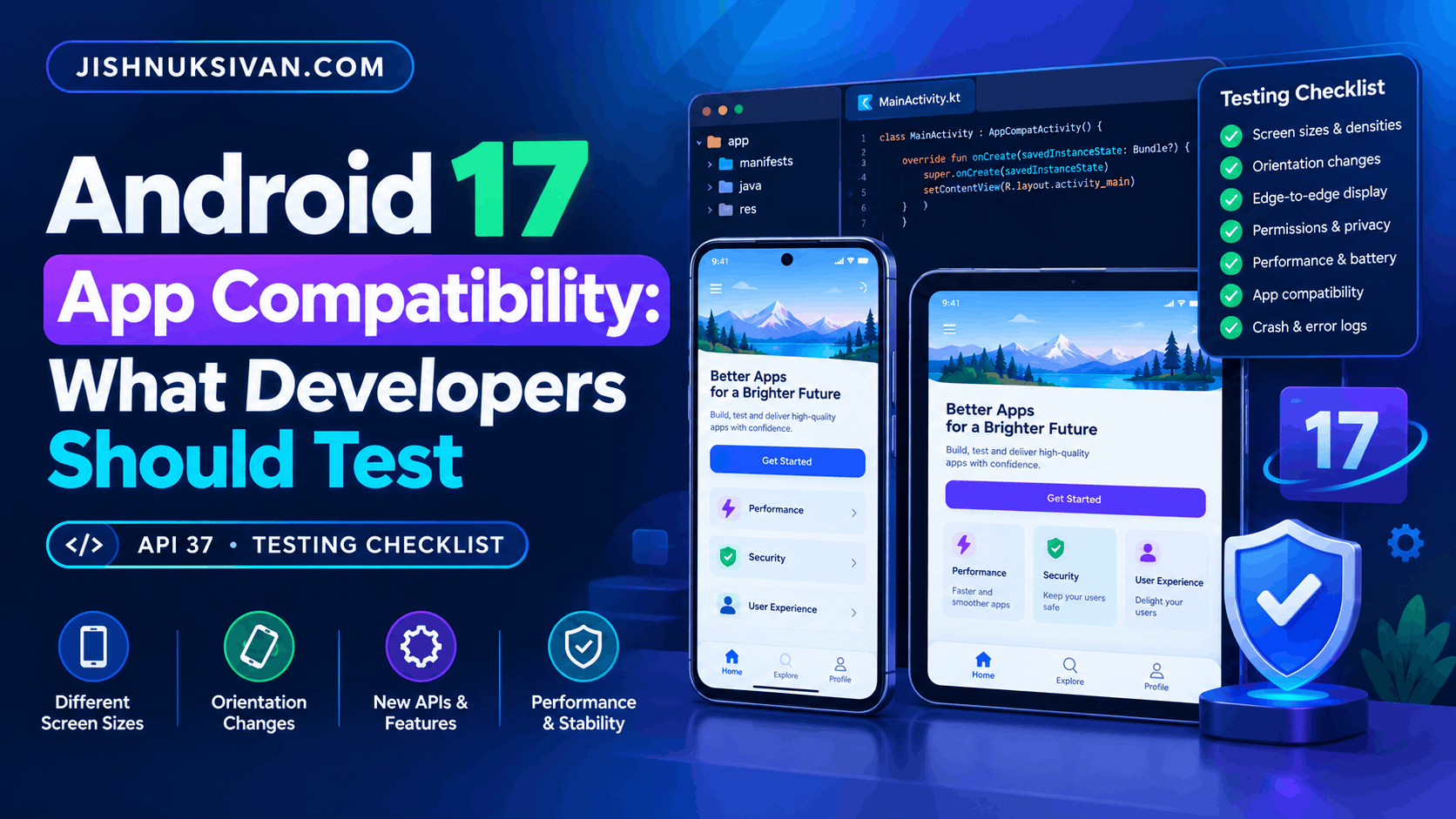
Android 17 introduces important changes that Android developers should test before updating their apps. From large-screen layouts and privacy permissions to memory limits, native libraries, and background audio, these changes can affect how existing applications behave.
Whether you build Android apps with Java, Kotlin, Android Studio, Firebase, or third-party SDKs, testing compatibility early can help you identify crashes, layout problems, and unexpected behavior before they affect users.
In this guide, you will learn what to test on Android 17, how to use an emulator, which compatibility issues deserve attention, and how to prepare your app for API level 37.
Important: Android 17 targets API level 37. Some behavior changes apply to every app running on Android 17, while others apply only when an app targets API 37 or higher. Always verify the conditions for each change in the official Android documentation.
What Is Android 17 App Compatibility?
Android app compatibility means ensuring that an application continues to work correctly when it runs on a newer Android version.
A compatible app should launch without crashing, display its interface correctly, handle permissions properly, access supported system features, and work with its libraries and services.
Android 17 compatibility testing involves two stages:
- Basic compatibility: Check whether your existing app works correctly on Android 17.
- Target SDK compatibility: Test changes that become applicable when your app targets Android 17 (API 37).
You can often fix basic compatibility problems without immediately changing your app’s target SDK. However, preparing to target API 37 requires additional testing for platform behavior changes.
Official reference: https://developer.android.com/about/versions/17/migration
1. Test Large-Screen Layouts and Resizing
One of the major Android 17 changes affects apps running on large-screen devices.
For apps targeting API 37, Android 17 removes the developer opt-out for orientation and resizability restrictions on large screens with a smallest width of at least 600 dp. This affects supported tablets, foldables, and other large-screen environments.
Legacy manifest settings and runtime requests that force a particular orientation or prevent resizing may be ignored in these conditions. Games are exempt from this specific requirement.
What should you test?
- Open the app on a tablet or foldable emulator.
- Resize the app window if the device supports free-form windowing.
- Rotate the device between portrait and landscape.
- Check that buttons, menus, images, and text remain visible.
- Verify that forms and navigation panels adapt to different window sizes.
- Make sure dialogs and keyboards do not cover important controls.
For example, an app designed only for portrait mode may display poorly when its window becomes wider. A responsive layout should adapt to the available space rather than depend on one fixed screen size.
How to improve compatibility
Use responsive layouts, resource qualifiers, and appropriate window-size classes. If you use Jetpack Compose, consider adaptive layout components that respond to the available window size.
Do not assume that a layout which looks correct on one phone will also work on a tablet or foldable.
Official reference: https://developer.android.com/about/versions/17/behavior-changes-17
2. Check Activity Recreation and Configuration Changes
Android 17 changes how activities respond to certain configuration changes.
For specified configuration changes, including keyboard, navigation, touchscreen, and color-mode changes, the system no longer restarts activities by default in the same way as before. Your app may receive configuration updates through onConfigurationChanged() instead.
This can affect apps that rely on an activity restarting to reload resources or reset their interface.
Testing checklist
- Connect or disconnect a physical keyboard.
- Test orientation and navigation-related changes.
- Switch supported display modes and window configurations.
- Verify that the UI updates when configuration changes occur.
- Check whether forms, navigation state, and unsaved data remain correct.
If your app genuinely depends on activity recreation for a particular supported configuration change, review Android’s new android:recreateOnConfigChanges guidance and configure the app accordingly.
Avoid adding unnecessary activity restarts. Preserve UI state properly and handle configuration changes intentionally.
3. Review Permissions and Privacy Behavior
Android continues to evolve its privacy protections. Android 17 includes changes that developers should review when checking app behavior and preparing for the new target SDK.
Your app should request only the access it needs and should provide a clear experience when a user grants or denies permission.
Test these features
- Camera and microphone access.
- Location permissions.
- Contact selection.
- Photo and media access.
- Bluetooth and nearby-device functionality.
- Local network access, where relevant.
Android 17 introduces a system-level contact picker that can let users share selected contact information without granting broad, permanent access to their contacts.
Apps targeting API 37 or higher must also review the new local network access protections. Local network access is blocked by default for affected apps unless they use an appropriate privacy-preserving alternative or obtain the required access.
Best practices
- Request permissions only when the user needs the feature.
- Explain why access is required.
- Handle denied and revoked permissions gracefully.
- Prefer system pickers when they satisfy your use case.
- Review the current Android 17 privacy documentation before changing your target SDK.
Official reference: https://developer.android.com/about/versions/17/behavior-changes-17
4. Test Native Libraries and Dynamic Code Loading
If your Android app includes native code, third-party .so files, or dynamically loaded libraries, check that those components work on Android 17.
For apps targeting API 37 or higher, Android 17 extends Safer Dynamic Code Loading protections to native libraries. Native files loaded using System.load() must be marked read-only; otherwise, the system can throw an UnsatisfiedLinkError.
This is especially important for apps using game engines, native SDKs, custom runtime components, or libraries that download code or native files.
What to check
- Update third-party SDKs to compatible versions.
- Test native library loading on an Android 17 device or emulator.
- Verify the location and file permissions of native libraries.
- Review dynamic loading logic in your own code.
- Check Logcat for
UnsatisfiedLinkErrorand related messages.
Do not make a file read-only as a blind fix without reviewing how it is created, stored, and loaded. Follow the official Android guidance for your specific loading method.
5. Review Reflection and MessageQueue Usage
Android 17 changes the implementation of android.os.MessageQueue for apps targeting API 37 or higher.
The new lock-free implementation can improve performance, but code that uses reflection to access private MessageQueue fields or methods may stop working.
Android 17 also prevents apps running on Android 17 and targeting API 37 or higher from modifying static final fields through reflection. Attempts to modify such fields can cause an IllegalAccessException; modifying them through certain JNI operations can crash the app.
Recommended checks
- Search your project for reflection involving Android framework internals.
- Review third-party libraries that rely on undocumented APIs.
- Replace private framework access with public SDK APIs where possible.
- Test code that modifies fields through reflection or JNI.
- Review Logcat warnings about restricted non-SDK interfaces.
Avoid relying on hidden Android APIs. Public APIs are more reliable across platform updates.
6. Test Memory Usage and Custom Notifications
Android 17 introduces additional memory restrictions for certain UI components.
For apps targeting API 37 or higher, the system enforces a memory limit on the combined bitmap and icon data contained in a RemoteViews parcel used by widgets and related features. Exceeding the limit can result in an IllegalArgumentException and a process crash.
Custom notification views also have stricter size restrictions.
What to test
- Home-screen widgets containing large images.
- Custom notification layouts.
- High-resolution bitmap resources.
- Repeated widget updates.
- Memory usage on lower-memory devices.
How to reduce risk
Use appropriately sized images, avoid unnecessarily large bitmaps, and reduce duplicated image data. Test widgets and notifications under realistic memory conditions.
If your app is affected by memory limits, Android provides diagnostic information through ApplicationExitInfo and related profiling tools. Consult the official documentation for the correct diagnostic approach.
7. Check Background Audio and Media Playback
Apps that play music, podcasts, game audio, or other media in the background should receive special attention during Android 17 testing.
Android 17 introduces additional restrictions involving background audio playback, audio focus requests, and volume-change APIs. The exact behavior can depend on the app’s target SDK and the applicable exemptions.
Testing checklist
- Start audio playback and move the app to the background.
- Lock the screen while audio is playing.
- Receive a phone call or another audio interruption.
- Connect and disconnect Bluetooth headphones.
- Test audio focus changes between apps.
- Verify pause, resume, and notification controls.
- Test alarm or other time-sensitive audio behavior where relevant.
Review your foreground service configuration and media session implementation. Do not assume that background audio behavior will be identical across Android versions.
Official reference: https://developer.android.com/about/versions/17/release-notes
8. Verify Camera, Video, and Third-Party SDKs
Camera, video, analytics, advertising, authentication, and payment SDKs can introduce compatibility problems even when your own code has no obvious issues.
Android’s Android 17 guidance specifically highlights checking libraries and SDKs. It also notes that certain CameraX versions should be updated to avoid a crash associated with an added dynamic-range mode.
Test the following
- Camera preview and photo capture.
- Video playback and recording.
- Media processing and editing.
- Firebase Authentication and database operations.
- AdMob banner, interstitial, and rewarded ads.
- Analytics and crash-reporting SDKs.
- Login, payment, and other external integrations.
Update libraries to versions supported by their maintainers, and read release notes before upgrading. Test the complete user flow rather than simply confirming that the app launches.
For Unity projects, also check whether the Unity editor version, Android build tools, native plugins, and advertising SDKs support the Android version and target SDK you intend to use.
9. Test App Compatibility Using Android Studio
Android Studio and the Android Emulator provide a practical way to test an app before release.
Step 1: Install the required tools
Install a suitable Android Studio version and download the Android 17 system image through SDK Manager. Use the latest supported preview or stable tools appropriate for the platform release.
Step 2: Create an Android 17 emulator
- Open Android Studio.
- Select Tools → Device Manager.
- Create a virtual device or edit an existing one.
- Select an Android 17 system image.
- Start the emulator.
A physical Android 17 device is also useful for validating behavior that may differ from emulation.
Step 3: Install your existing app
Run your current app on the Android 17 emulator or install a test build.
First, test the version that reflects your current production configuration. This helps identify compatibility problems without combining them with target SDK migration changes.
Step 4: Test the full app
Test login, navigation, data entry, network requests, notifications, camera features, media playback, background tasks, and all other important user journeys.
Step 5: Inspect Logcat
Open Logcat in Android Studio and look for crashes, exceptions, permission failures, native library errors, and compatibility warnings.
Step 6: Test target SDK changes separately
When you are ready to target API 37, update the build configuration and test again. Some behavior changes only become active when your app targets the new platform.
10. Use App Compatibility Changes to Find Problems
Android includes compatibility framework tools that help developers test selected behavior changes individually.
For a debuggable app, these tools can let you enable or disable specific toggleable changes without immediately changing your target SDK or recompiling the app.
This makes it easier to isolate a problem before migrating the whole application.
Basic approach
- Install a debuggable build on an Android 17 test device.
- Open the device’s Developer options.
- Find the app compatibility changes screen.
- Select your application.
- Enable relevant changes individually where supported.
- Repeat the affected test and inspect Logcat.
You can also use ADB to manage supported compatibility changes in automated test environments. Follow the current Android documentation for the correct command and change identifiers.
Official reference: https://developer.android.com/guide/app-compatibility/test-debug
Android 17 App Compatibility Checklist
Before releasing an Android 17-compatible update, review this checklist:
- App launches and completes its main user journeys.
- Layouts adapt to different screen sizes and orientations.
- Activity state survives configuration changes correctly.
- Permissions and privacy-sensitive features work as expected.
- Local network access works under the applicable rules.
- Native libraries and dynamic code loading are compatible.
- Reflection and hidden API dependencies have been reviewed.
- Widgets and custom notifications work within memory limits.
- Background audio and media controls work correctly.
- Camera, video, advertising, and other third-party SDKs are tested.
- Logcat has been checked for relevant warnings and errors.
- Both the existing target SDK and API 37 migration paths have been tested.
- Release builds have been tested on physical devices where possible.
Common Android 17 Compatibility Testing Mistakes
Testing only on a phone
A phone-only test may miss layout problems on tablets, foldables, and resizable windows. Include large-screen testing where relevant to your app.
Updating targetSdkVersion without reviewing behavior changes
Raising the target SDK can activate additional platform requirements. Read the migration guide before making this change.
Ignoring third-party libraries
A dependency may rely on private APIs or assumptions that no longer hold. Update and test important SDKs, including native components.
Testing only whether the app opens
An app can launch successfully but still fail during login, background playback, notifications, permission requests, or network operations. Test real user journeys.
Skipping release-build testing
Debug and release builds can behave differently because of optimization, code shrinking, signing, or build configuration. Test the actual release variant before publishing.
Frequently Asked Questions
Do I need to change targetSdkVersion to test Android 17 compatibility?
No. You can begin basic compatibility testing using your current target SDK. You should separately test changes that apply when targeting API 37 before completing the migration.
What is Android 17’s API level?
Android 17 uses API level 37.
Can Android 17 break an existing Android app?
Yes. Some platform changes can affect existing apps, while other changes apply only when the app targets Android 17. Testing helps identify the relevant issues.
How can I test Android 17 without a physical device?
You can use an Android 17 system image in the Android Emulator. Physical-device testing is still recommended for final validation of device-specific behavior.
Does Android 17 affect Unity games?
Unity games should be tested with compatible Unity versions, Android build tools, plugins, and SDKs. The specific large-screen orientation and resizability requirement discussed in this guide exempts apps categorized as games, but other platform and SDK compatibility checks may still apply.
When should I publish an Android 17-compatible update?
Start testing early, fix verified compatibility issues, and publish a compatible update when it is ready. Before changing your target SDK, review current Google Play requirements and the official Android migration guidance.
Conclusion
Android 17 app compatibility testing is about more than checking whether an app opens. Developers should validate large-screen layouts, configuration changes, privacy behavior, native libraries, memory use, background audio, and third-party SDKs.
Start with your existing app configuration, test on an Android 17 emulator or device, and then perform a separate migration test for API 37. Use Logcat and Android’s compatibility tools to isolate issues, and verify fixes in a release build before publishing.
Official resources
- Android 17 migration guide: https://developer.android.com/about/versions/17/migration
- Android 17 behavior changes: https://developer.android.com/about/versions/17/behavior-changes-17
- Android 17 release notes: https://developer.android.com/about/versions/17/release-notes
- App compatibility testing tools: https://developer.android.com/guide/app-compatibility/test-debug
