
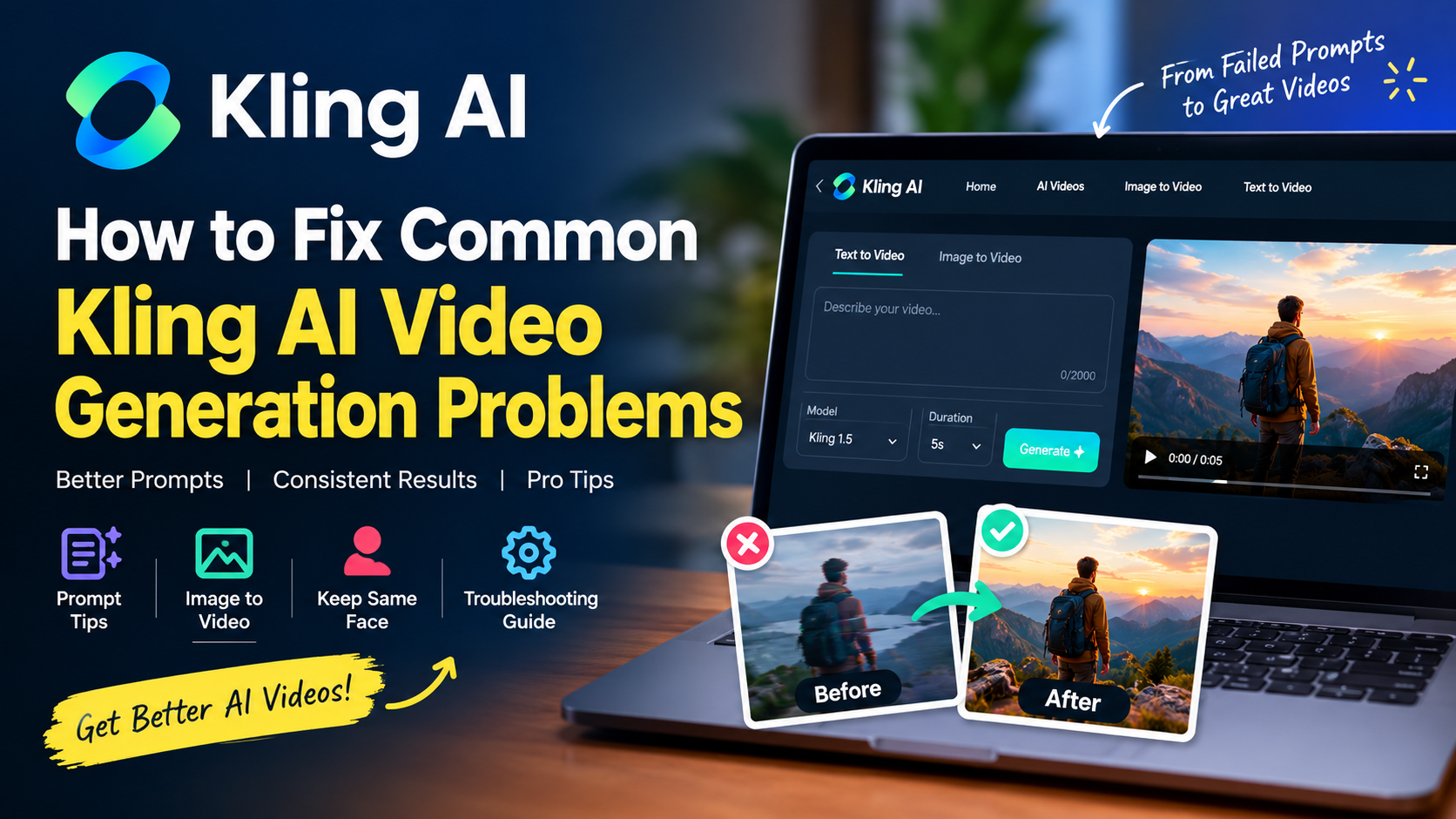
AI video generators can turn a simple image or text prompt into an animated video. But getting the result you actually want is not always easy
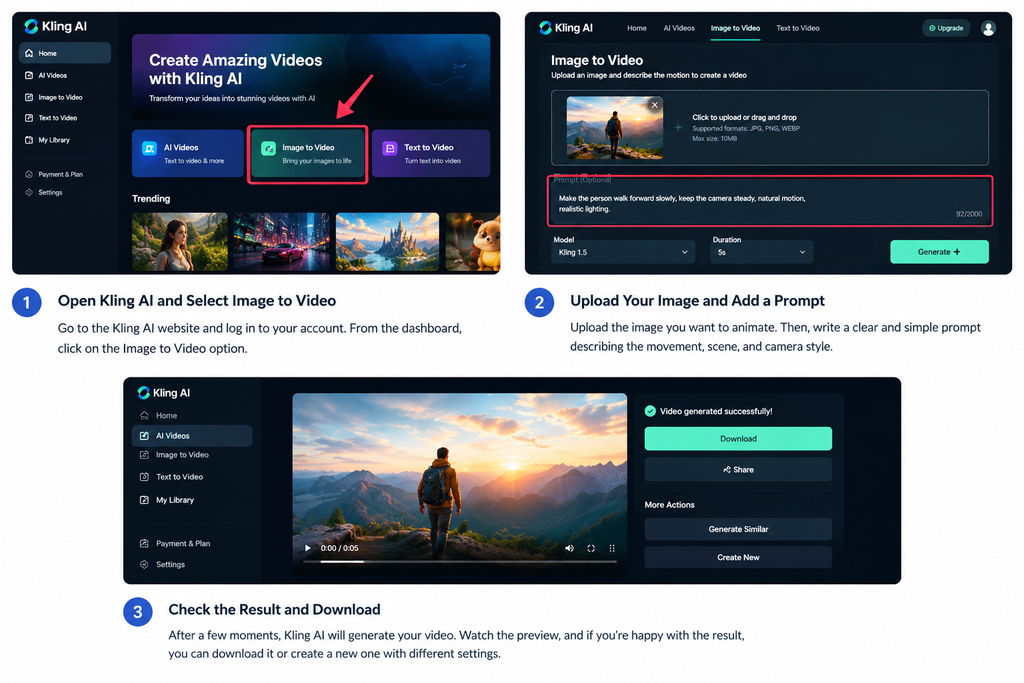
You might upload a photo and find that the person looks different in the final video. Sometimes the movement feels unnatural, the camera moves in the wrong direction, or the generated scene does not match your prompt.
If you are facing these problems with Kling AI, changing random words in your prompt is not always the best solution. A better approach is to identify what went wrong and adjust one thing at a time.
In this guide, we will look at common Kling AI video generation problems and practical ways to improve your results.
1. Why Does Kling AI Generate the Wrong Movement?
One common problem with AI video generation is that the model understands the subject but does not interpret the intended movement correctly.
For example, you might upload a picture of a person standing near a car and ask the AI to make the person walk forward. The result could show the person turning around, moving sideways, or making an unexpected gesture.
This can happen when a prompt contains several actions or leaves too much room for interpretation.
How to Fix It
Keep the main action simple and describe exactly what should happen.
Instead of writing:
Make this person move naturally in a beautiful cinematic scene with lots of camera movement and dramatic effects.
Try a more specific prompt:
Use the uploaded image as the starting frame. The person takes two slow steps forward while looking straight ahead. Keep the body movement natural. The camera remains steady at eye level. Soft daylight, realistic motion, no sudden scene changes.
This gives the video model a clearer subject, action, and camera instruction.
Tip: Generate a short, simple scene first. Once the movement looks correct, experiment with more complex camera movements or additional actions.
2. How to Keep the Same Face in an AI-Generated Video
If you are animating a real person’s photograph, you may notice changes to the face, hairstyle, skin tone, or clothing during the generated video.
This is particularly frustrating when you want to animate a portrait without changing the person’s identity.
A prompt can help guide the model, but it cannot guarantee perfect identity preservation in every frame.
Steps to Improve Consistency
Step 1: Start with a clear reference image.
Use an image where the face is visible, reasonably sharp, and well lit. Avoid excessive blur, heavy filters, or a face hidden by objects.
Step 2: Describe the movement without changing the appearance.
For example, use this prompt:
Animate the person in the uploaded reference image with a gentle, natural head turn. Preserve the person’s recognizable facial features, hairstyle, skin tone, clothing, and overall appearance. Do not introduce new people or change the scene.
Step 3: Avoid combining too many actions.
If the person needs to walk, dance, turn around, and interact with objects, try testing simpler movements separately before combining them.
Step 4: Review the whole video.
Do not judge the result only by the first frame. Pause at different points and check whether the face, clothing, and body proportions remain consistent.
If the model continues to change the face, try a more suitable reference image or a workflow that supports character references and stronger identity controls.
3. Why Does Image-to-Video Produce Unexpected Results?
Image-to-video generation starts with an existing image and attempts to animate it. The model must interpret which parts of the image should move and how the scene should develop over time.
Problems can occur when the prompt requests movements that are difficult to infer from a single photograph.
For example, a photograph of a person sitting on a chair does not show what their legs look like from every angle. Asking the person to stand up, walk across the room, and turn around requires the model to generate details that are not visible in the original image.
How to Improve Image-to-Video Results
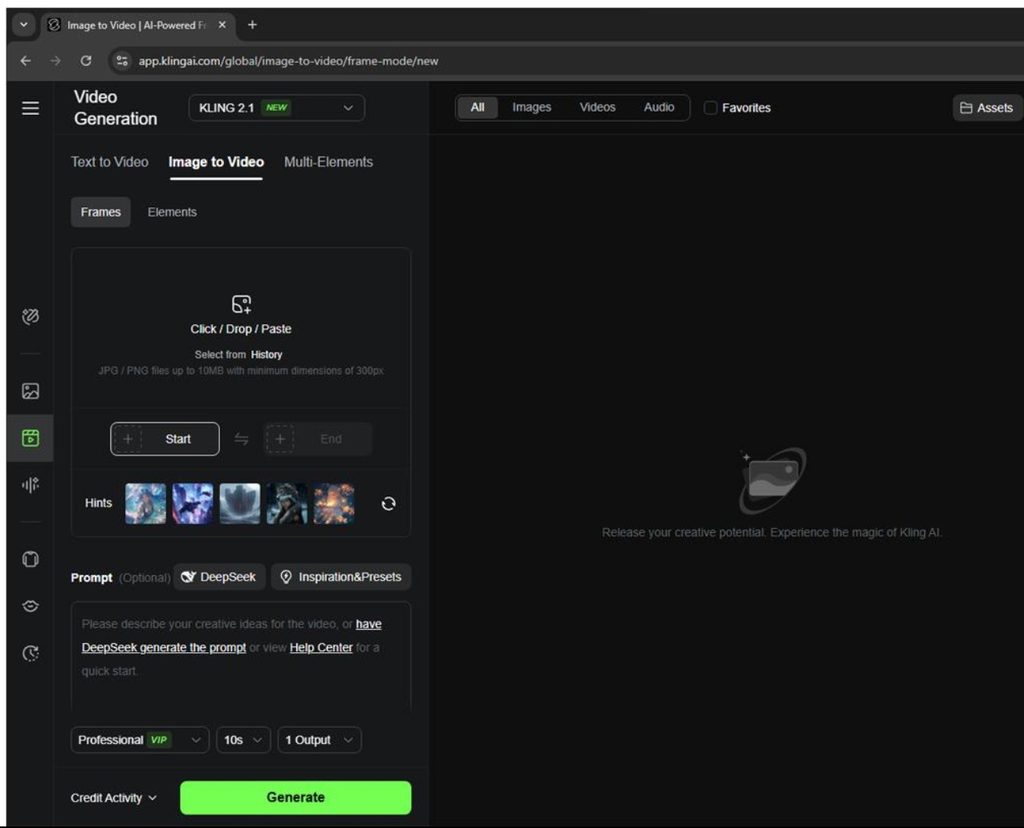
- Choose a reference image with a clearly visible subject.
- Describe one main movement.
- Explain what should remain unchanged.
- Specify whether the camera should stay still or move.
- Avoid asking for large changes in perspective unless they are necessary.
Kling’s official Video O1 guide also describes using start and end frames to guide a transition between two images in supported workflows. Check the current model’s available controls before choosing this method.
For example, if you want a character to move from one position to another, suitable start and end frames can provide clearer visual guidance than a long text description alone.
Read the official Kling AI Video O1 user guide for details about supported reference inputs and generation workflows.
4. How to Write a Better Kling AI Video Prompt
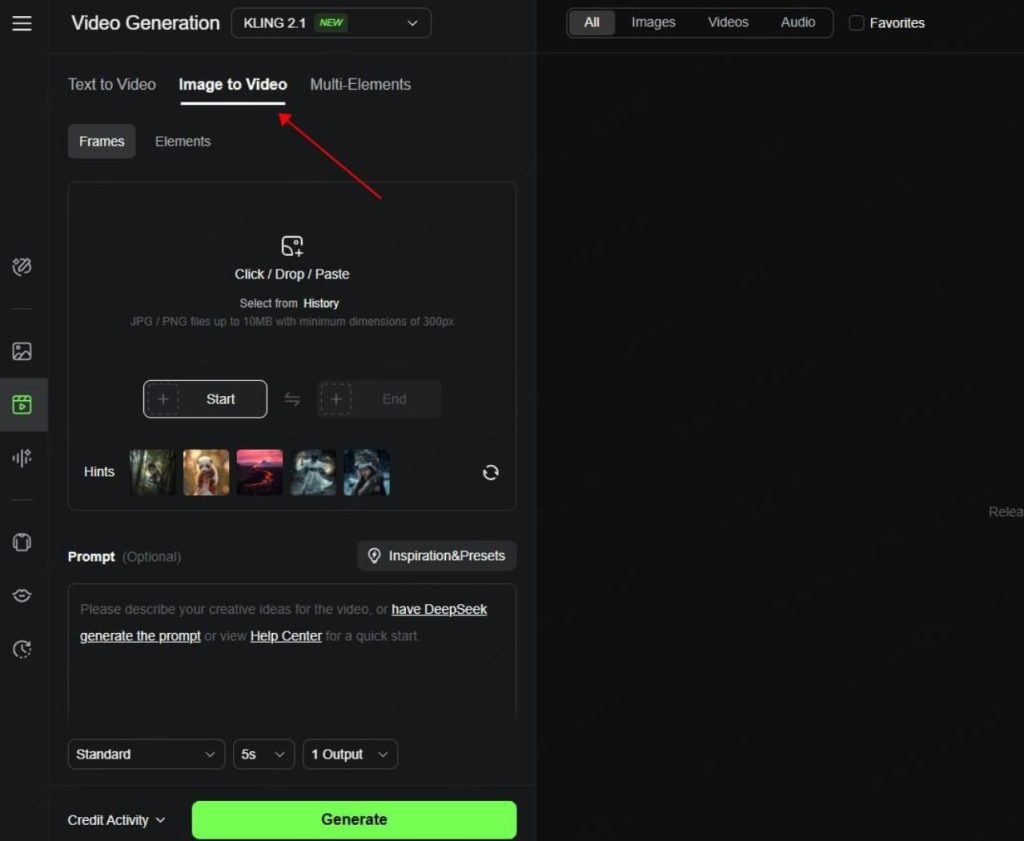
A useful prompt does not need to be extremely long. It needs to describe the important parts of the shot clearly.
One practical structure is:
Subject + movement + scene + camera + lighting + visual style
Here is how to use each part:
- Subject: Who or what appears in the video?
- Movement: What should happen?
- Scene: Where does the action take place?
- Camera: Should the shot be static, a close-up, or a tracking shot?
- Lighting: Is the scene bright, soft, dark, or dramatic?
- Visual style: Should the result look realistic, animated, or cinematic?
Example Prompt for a Realistic Portrait
Animate the person in the uploaded photograph with subtle natural breathing and a gentle head movement. Preserve the recognizable face, hairstyle, clothing, and background. Keep the camera fixed in a medium close-up. Natural daylight, realistic motion, consistent appearance, no sudden camera movements.
This prompt is deliberately simple. It gives the model a clear action without asking it to change the entire scene.
Example Prompt for a Cinematic Walking Scene
Show the person walking slowly along a quiet street at sunset. The person takes natural steps and looks ahead. The camera follows smoothly from the front at a consistent distance. Warm evening light, realistic movement, stable clothing and facial appearance.
These examples are starting points, not guaranteed solutions. Results depend on the selected model, source image, available settings, and generation process.
5. What to Do When Kling AI Rejects an Image or Fails to Generate a Video
Sometimes the problem is not the prompt itself. The upload, file format, account limits, or temporary service conditions may be responsible.
Check the Image Format and Size
Use a supported image format and verify the dimensions and file size against the requirements shown in your selected Kling workflow. Requirements can differ between tools and models.
Check Your Available Credits or Usage Limits
Confirm that your account has enough credits for the selected generation settings. Do not assume that every failed attempt is caused by insufficient credits.
Try a Simpler Prompt
Temporarily remove unnecessary instructions and test one action. This can help distinguish a prompt problem from a technical issue.
Check the Service Status and Retry Later
If the interface is not responding or a generation remains stuck, a temporary service issue may be involved. Avoid repeatedly submitting the same request without checking its status.
Try Another Supported Reference Image
If one image repeatedly fails, test a different image that meets the current upload requirements. This can help determine whether the issue is specific to the source file.
If the error continues, record the exact error message and consult Kling AI’s official help resources. The error message is more useful than guessing at the cause.
6. How to Avoid Wasting Credits on Repeated Generations
Repeatedly generating a full video while changing several prompt details at once makes it difficult to understand which change helped.
A more efficient approach is to test the scene in stages.
- Start with the simplest version of your idea.
- Check whether the main action works.
- Improve the camera instructions if needed.
- Add lighting and atmosphere after the movement looks right.
- Change one major instruction per test.
Before generating, check the selected duration, resolution, model, and credit cost displayed in your account. Availability and pricing may change over time.
If your workflow supports previewing or testing a lower-cost version, use it before committing to a more expensive generation.
7. How to Get More Consistent Results Across Multiple Scenes
Creating several videos featuring the same character can be harder than generating a single clip.
If you are making a story, music video, or short film, write down the important character details before generating each scene.
- Hairstyle and general appearance.
- Clothing and accessories.
- Scene location and time of day.
- The character’s main action.
- Camera angle and visual style.
Reuse the same character description and reference images wherever the tool supports them. However, repeating a description alone does not guarantee that the model will reproduce every detail exactly.
For a longer project, review each generated clip before moving to the next scene. This makes it easier to spot inconsistencies early.
Frequently Asked Questions
Why Does Kling AI Ignore Parts of My Prompt?
The model may interpret competing instructions differently than you expect. Try reducing the prompt to one main action and a few important visual details.
Can I Stop Kling AI from Changing a Person’s Face?
You can improve consistency with a clear reference image and precise instructions, but perfect identity preservation is not guaranteed. Review the full video before using it.
Is a Longer Prompt Always Better?
No. A longer prompt can introduce conflicting instructions. A concise prompt that clearly describes the subject, movement, and camera may be easier to interpret.
Why Does My AI-Generated Video Look Unnatural?
The requested movement may be too complex, the source image may not provide enough visual information, or the model may struggle with the scene. Test simpler actions and improve the reference image before adding complexity.
Does the Same Prompt Work in Every AI Video Generator?
Not necessarily. Different models have different controls, capabilities, and prompt interpretation. Adjust your instructions to the model and workflow you are using.
Final Thoughts
Getting a good AI-generated video often requires a little experimentation. The key is to understand the problem before rewriting the entire prompt.
Start with a clear reference image, describe one main action, specify the camera behaviour, and check the result carefully. If the generation fails, review the upload requirements, account limits, and error message before trying again.
With a more structured workflow, you can spend less time making random changes and more time improving the actual video.
Official resource: Kling AI Official Quickstart and User Guides
Editorial note: Test the instructions with the current Kling AI interface before publication. Model capabilities, upload limits, and credit costs can change over time.
About the Author
Jishnu K Sivan shares technology tutorials and practical guides on Android development, Flutter, AI tools, and web technologies at Jishnuksivan.com.
