

Last updated: October 2026
You finished your app, tested it on your phone, and opened Google Play Console to publish it. Then you notice that the Production option is locked. If you created your developer account recently, you are probably facing Google Play’s closed testing requirement.
This rule confuses almost every first-time publisher. How many testers do you need? Do the 14 days have to be continuous? What happens if someone leaves the test? In this guide I’ll explain everything in simple language, step by step, so you can pass the requirement and get your app live.
What Is the Google Play Closed Testing Requirement?
Google Play requires developers with personal developer accounts created after November 13, 2023 to test their apps before the apps can be released to everyone. Until you meet these requirements, features such as Production and Pre-registration stay disabled in Play Console.
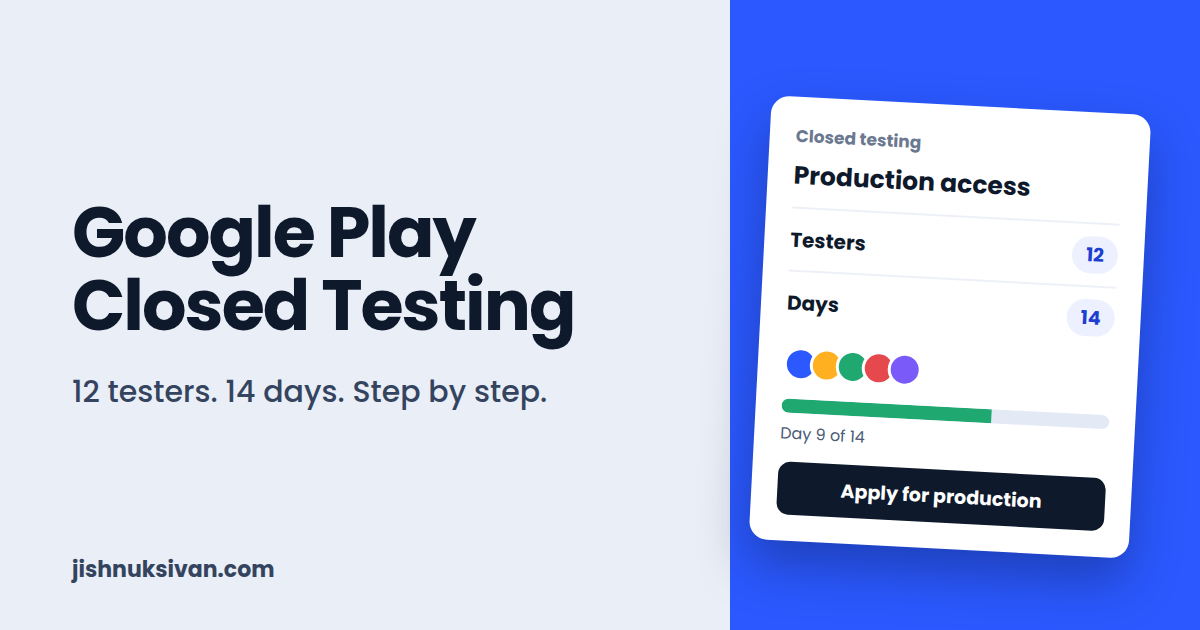
In simple words, the rule is:
- Run a closed test of your app
- With at least 12 testers
- For 14 continuous days
- Then apply for production access in Play Console
Google originally announced this rule with a requirement of 20 testers. It later reduced the number to 12 for personal accounts to make it easier for smaller developers. The goal of the rule is to make sure apps are tested by real people before they reach the public.
Important: Rules like this can change. Always check the official Google Play Console Help page, “App testing requirements for new personal developer accounts,” for the latest details before you start.
Who Needs to Follow This Rule?
- Personal developer accounts created after November 13, 2023: Yes, the rule applies to you.
- Older personal accounts (created before that date): The testing requirement was introduced for newly created accounts, so it generally does not apply.
- Organization accounts: The closed testing requirement is described for personal accounts. Organization accounts are generally not affected, but they have their own verification paperwork, such as a D-U-N-S number.
If you’re not sure which type of account you have, open Play Console and check your account details.
Closed Testing vs Open Testing vs Production
Play Console has several testing tracks. Here is how they differ:
- Internal testing: For up to a small group of your own team or friends. Quick to set up and good for early checks. It does not count toward the closed testing requirement.
- Closed testing: Only the testers you invite can join. This is the track that counts for the 12 testers and 14 days rule.
- Open testing: Anyone can join and test. It becomes available only after you get production access.
- Production: Your app is live on Google Play for everyone.
Step-by-Step: How to Complete Closed Testing
Step 1: Prepare Your App
Before you start the 14-day clock, make sure your app is ready:
- Build a signed release app bundle (.aab). New apps must be published as app bundles, not APK files.
- Test the app on at least one real device so it doesn’t crash on launch.
- Prepare your store listing: app name, short and full description, icon, screenshots, and a feature graphic.
- Add a Privacy Policy link, which is required for most apps.
- Complete the App content section in Play Console (data safety form, content rating, target audience, ads declaration).
Do not upload a placeholder or half-finished app. Google reviews closed test releases too, and the testing period is useful only if your app is real and working.
Step 2: Create the Closed Testing Track
- Open Play Console and select your app.
- Go to Test and release → Testing → Closed testing.
- Create a new track (or use the default one) and click Create new release.
- Upload your .aab file, add release notes, and save.
- Review and roll out the release to the closed testing track.
Step 3: Create a Tester List
- In the closed testing track, open the Testers tab.
- Create a new email list and add your testers’ Gmail (Google account) addresses, or use a Google Group that contains your testers.
- Save the list and make sure it’s selected for the track.
Testers need a Google account, because that’s how Play identifies who can access the test.
Step 4: Share the Opt-In Link
- In the Testers tab, copy the opt-in URL for the track.
- Send the link to your testers.
- Each tester must open the link, accept the invitation (opt in), and then install the app from the Play Store.
Testers who never opt in don’t count. Make sure all of them complete this step.
Step 5: Keep the Test Running for 14 Continuous Days
The testing period must be continuous, so don’t stop or pause the track. According to community guides, these are the things to watch:
- Keep at least 12 testers opted in for the whole period.
- Don’t pause or halt the closed testing track.
- You can release updated builds during the test. In fact, fixing bugs based on feedback is a good idea. Just make sure the new build works properly.
- If testers leave, the count can fall below the requirement, so recruit a few extra testers, for example 15 to 20, as a safety margin.
During these 14 days, ask your testers to open the app, use its main features, and report problems.
Step 6: Apply for Production Access
After the requirements are met, go to the Dashboard in Play Console and apply for production access. You’ll answer questions about:
- Your app and who it’s for
- How you ran your testing
- A summary of the feedback you received and what you changed
- Your readiness for production
Google states that these answers are not shown publicly on your store listing and don’t affect your app’s visibility or your eligibility for developer programs.
Be honest and specific. Describe the real issues testers found and the real fixes you made. The review usually takes some days, so plan for it in your launch schedule.
How to Find 12 Testers
Finding testers is the hardest part for most people. Here are practical ideas:
- Friends, family, and classmates. Ask people you know to join. Give them clear, simple instructions.
- WhatsApp and Telegram groups. College, developer, and local tech groups are often happy to help.
- Developer communities. Forums and subreddits for Android and Flutter developers often have threads where developers test each other’s apps. Offer to test their app in return.
- Your own audience. If you have a YouTube channel, blog, or social media page, invite your followers to test the app.
- Colleagues and your own test devices. Use different Google accounts on different devices where genuine.
A warning about fake testers: Avoid services that promise instant “testers” with bot accounts or inactive users. Testers should be real people who actually use your app. Google asks about your testing process when you apply, and a test that exists only on paper gives you no real feedback to improve the app. It is safer and more useful to find genuine testers.
Tips to Pass on the First Attempt
- Start early. Plan the 14 days into your launch schedule from day one.
- Recruit more than 12 testers. Extra testers protect you if someone drops out.
- Remind testers on day 1, day 7, and day 13. A short message is enough.
- Collect real feedback. Use a simple Google Form or a WhatsApp group to gather bug reports and suggestions.
- Fix issues and release updates. This also gives you real answers for the production access form.
- Keep notes. Write down the bugs found, the dates, and the changes you made.
- Make sure the app opens on common devices and Android versions.
Closed Testing vs Developer Verification
Many new developers confuse these two requirements. They are different:
- Closed testing is about your app. It checks that real testers used it for 14 days.
- Developer verification is about you. It confirms your identity as the developer.
Verification does not replace the testing requirement, and testing does not replace verification. They run separately, so check the status of both in Play Console.
Developer verification has also been rolling out in stages. According to reports, enforcement began on September 30, 2026 in Brazil, Indonesia, Singapore, and Thailand, with other regions expected later. Check Google’s official announcements for the latest timeline in your country.
Common Mistakes to Avoid
- Starting the test with a broken app. If it crashes, testers will leave and your feedback is useless.
- Having exactly 12 testers. If even one leaves, you may fall short.
- Testers who forget to opt in. They must accept the invitation and install the app.
- Pausing or halting the track. The testing period needs to be continuous.
- Using bot or fake testers. It gives you no real feedback and is risky.
- Rushing the production access form. Give honest, detailed answers.
- Not preparing the rest of the app content. Privacy policy, data safety, and content rating should be ready early.
- Ignoring policy compliance. Your app must still follow all Google Play policies. Testing alone is not enough.
What Happens After You Get Production Access?
Once Google approves your application, the Production track becomes available. You can then create a production release, submit it for review, and publish your app. After that, open testing also becomes available for future updates.
If you plan to add ads, remember to check my guide on How to Add AdMob Banner and Interstitial Ads and follow AdMob policies carefully.
Frequently Asked Questions
How many testers do I need for Google Play closed testing?
Google currently requires at least 12 testers for personal developer accounts that fall under the requirement. The number was originally 20 and was later reduced to 12.
Do the 14 days have to be continuous?
Yes. The test period needs to run continuously, so don’t pause or stop the closed testing track.
Can I update my app during the closed test?
Yes, you can release new builds during the test. Just make sure each new build works properly.
Do organization accounts need closed testing?
The requirement is described for personal accounts created after November 13, 2023. Organization accounts are generally not covered, but they have their own verification requirements.
Do internal testers count?
The requirement refers to the closed testing track. Internal testing is a different track and is not the one used for this requirement.
What if I fail the requirement?
You can keep testing, fix the issues, recruit more testers, and apply again when you meet the criteria.
Is Developer Verification the same as closed testing?
No. Verification confirms your identity as a developer. Closed testing confirms that real people tested your app. You need to satisfy both.
How long does the production access review take?
It can take several days, so don’t plan your launch date too tightly. Check Play Console for the current status.
Final Thoughts
The closed testing requirement can feel like an obstacle, but it is really a chance to find bugs before the public does. Prepare a working app, recruit real testers with some extra, keep the test continuous for 14 days, collect feedback, and answer the production access questions honestly.
If you’re building your first app, you may also like my guide on How to Install Android Studio and Create Your First App. Have questions about closed testing? Send them through my Contact page.
Disclaimer: Google Play policies and requirements change often. This article is for educational purposes only. Always check the official Google Play Console Help pages for the latest rules before you publish.

1 Comment
Good day, I’d like to receive a quote for your services and understand the typical timeline. Please let me know what details you need from me to proceed. Thanks!