The INSTALL_FAILED_VERSION_DOWNGRADE error is one of the most common Android installation issues faced by developers, testers, and Unity game creators.
This error usually appears when attempting to install an APK whose version is older than the version already installed on the device.
Whether you’re testing Android Studio projects, deploying Unity builds, switching Git branches, or installing older APKs, understanding this error can save significant debugging time.
In this guide, you’ll learn why the error occurs, how Android version codes work, and several proven methods to fix it in 2026.
What Is INSTALL_FAILED_VERSION_DOWNGRADE?
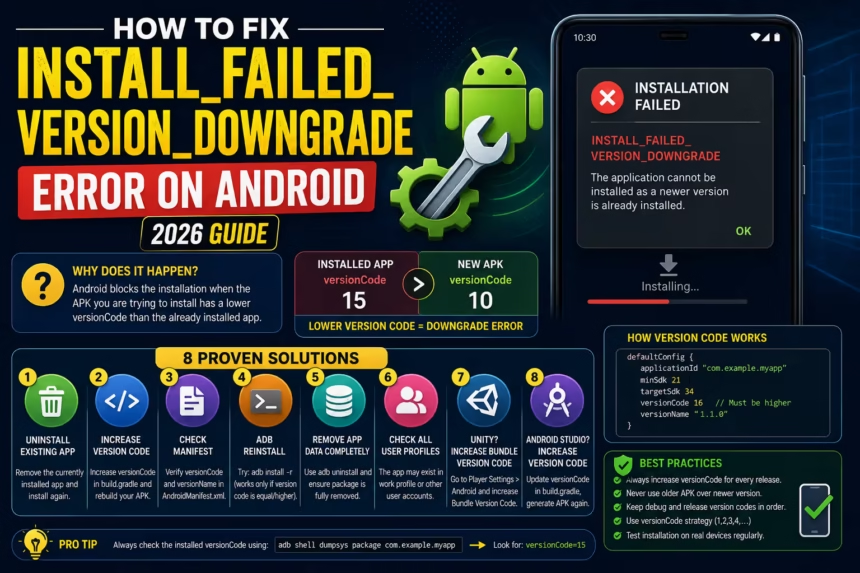
When Android installs an application, it compares the APK’s versionCode with the version already installed on the device.
If the new APK has a lower versionCode than the existing app, Android blocks the installation and displays:
INSTALL_FAILED_VERSION_DOWNGRADE
This behavior is intentional and helps prevent accidental downgrades that could cause compatibility issues or data corruption.
Common Situations Where This Error Appears
- Installing an older APK version.
- Testing Android Studio builds.
- Switching between Git branches.
- Installing debug builds over release builds.
- Deploying Unity Android builds.
- Restoring previous APK backups.
- Using APKs downloaded from testing environments.
Understanding versionCode and versionName
Many developers confuse these two values.
versionCode
versionCode 15
Android uses this internal integer value to determine upgrade and downgrade status.
Every update must have a higher versionCode than the previous version.
versionName
versionName "2.5"
This is the user-facing version displayed in app settings and app stores.
Android ignores versionName when determining whether an APK is newer or older.
Solution #1: Uninstall the Existing App
The simplest solution is removing the currently installed application.
Using Device Settings
- Open Settings.
- Select Apps.
- Choose your application.
- Tap Uninstall.
After uninstalling, install the APK again.
Using ADB
adb uninstall com.example.myapp
Replace the package name with your own application package.
Solution #2: Increase versionCode
If you are actively developing the application, increasing versionCode is usually the best solution.
Open:
app/build.gradle
Example:
defaultConfig {

    versionCode 5
    versionName "1.0.5"
}
If versionCode 5 is already installed, update it:
defaultConfig {

    versionCode 6
    versionName "1.0.6"
}
Rebuild and install the APK again.
Solution #3: Verify Android Manifest Settings
Older Android projects may still define version information inside AndroidManifest.xml.
Example:
android:versionCode="1"
android:versionName="1.0"
Ensure these values are updated correctly if your project relies on them.
Solution #4: Use ADB Reinstall
ADB supports reinstalling applications while preserving data.
adb install -r app.apk
However, this command does not bypass downgrade restrictions.
The APK must still have an equal or higher versionCode.
Solution #5: Completely Remove Existing Data
Sometimes applications remain partially installed.
Remove the package completely:
adb uninstall com.example.myapp
Then verify:
adb shell pm list packages
Confirm that the package no longer appears in the list.
Afterward, install the APK again.
Solution #6: Check Multiple User Profiles
Android supports:
- Work profiles
- Secondary users
- Cloned applications
The application may still exist under another user profile.
Use:
adb shell pm list packages
to verify all installations before reinstalling.
Solution #7: Fix the Error in Unity
Unity developers frequently encounter this issue during Android testing.
Open:
Project Settings
→ Player
→ Android
Locate:
Bundle Version Code
Example:
Current: 15
New: 16
Increase the Bundle Version Code and rebuild the APK or AAB file.
This is usually enough to resolve the error.
Solution #8: Fix the Error in Android Studio
Android Studio users should verify the versionCode value before generating builds.
Open:
app/build.gradle
Check:
versionCode
Many developers mistakenly update only:
versionName
Android ignores versionName for upgrade validation.
Only versionCode determines whether the installation is considered an upgrade or downgrade.
How to Check the Installed Version Code
ADB can display the version currently installed on a device.
Run:
adb shell dumpsys package com.example.myapp
Look for:
versionCode=15
Compare this value with the APK you’re attempting to install.
Common Mistakes Developers Make
Updating Only versionName
Changing:
versionName "2.0"
without increasing versionCode causes installation failures.
Installing Old APKs Over New Versions
Android blocks downgrades automatically.
Forgetting Unity Bundle Version Code
Many Unity developers update Bundle Version but forget Bundle Version Code.
Mixing Debug and Release Builds
Debug and release builds may have different version codes and signing configurations.
Best Practices to Avoid This Error
- Always increment versionCode for every release.
- Maintain a version tracking strategy.
- Use Git tags for release management.
- Verify versionCode before generating APKs.
- Keep debug and release configurations organized.
- Document build numbers during testing.
Frequently Asked Questions
Can I bypass INSTALL_FAILED_VERSION_DOWNGRADE?
Normally no. Android intentionally prevents downgrades for security and compatibility reasons.
Does versionName matter?
No. Android only checks versionCode when determining upgrades and downgrades.
Why does Unity show this error?
Usually because the Bundle Version Code was not increased before generating a new build.
Will uninstalling the app delete data?
Yes. Unless data is backed up externally or stored in cloud services.
Is reinstalling with ADB enough?
Only if the APK versionCode is equal to or greater than the installed version.
Final Verdict
The INSTALL_FAILED_VERSION_DOWNGRADE error occurs because Android prevents installing an application whose versionCode is lower than the version already installed on the device.
In most cases, the solution is straightforward:
- Uninstall the existing application.
- Increase versionCode.
- Update Unity Bundle Version Code.
- Rebuild the APK or AAB.
- Install the updated version.
Once you understand how Android version management works, this error becomes one of the easiest Android installation issues to solve.
Following proper versioning practices will help you avoid the problem entirely in future releases.